Mobile app
The Railway mobile app lets you monitor your projects, deployments, and logs from your phone. This guide covers the two things you need to get going: installing the app and signing in.
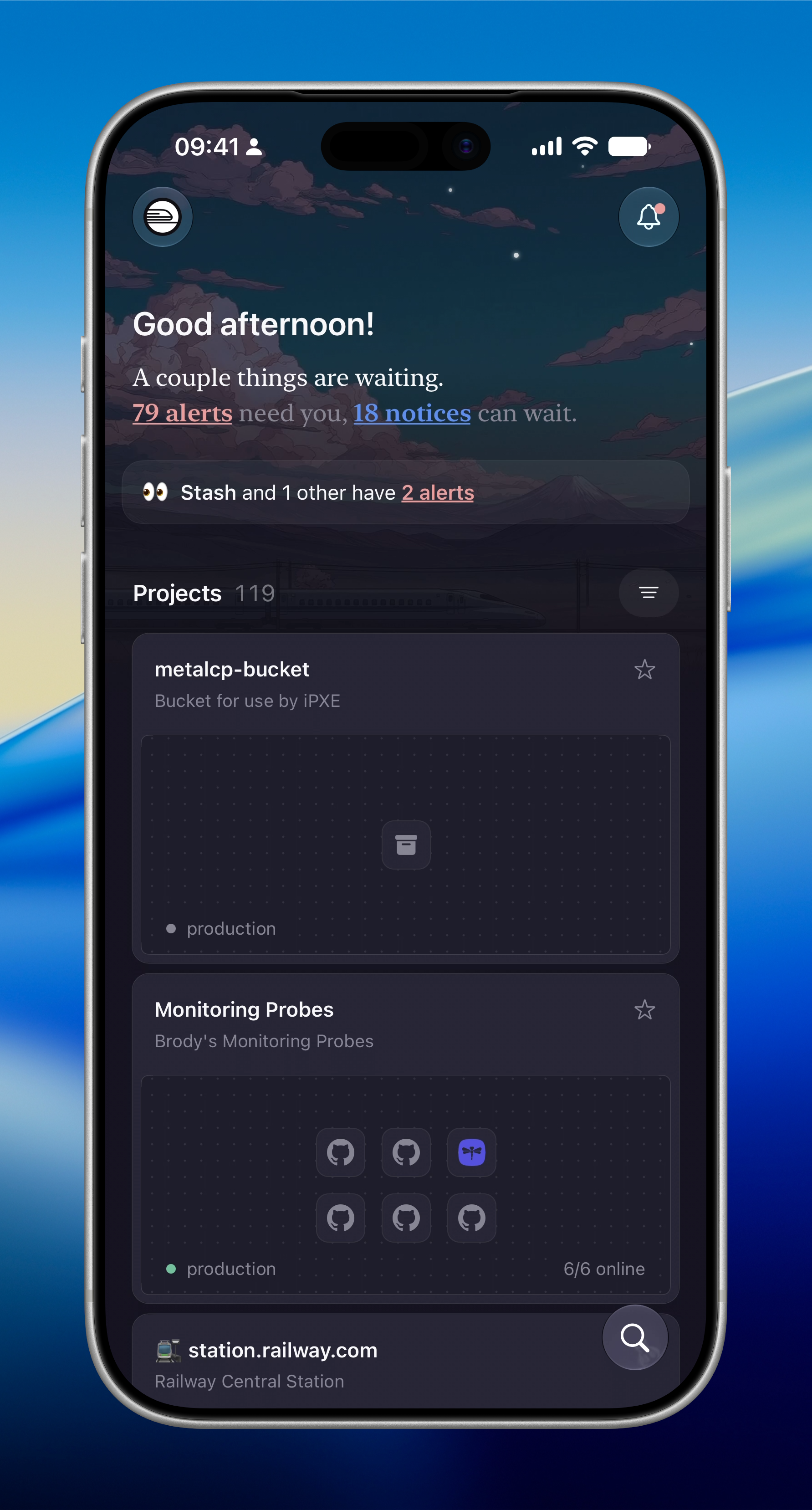
Install
The app is available for iPhone on the App Store and requires iOS 16.4 or later.
Download Railway from the App Store →Android isn't available yet. Join the waitlist on Railway Station to be notified when it ships.
Sign in
You'll need a Railway account to sign in. If you don't have one, sign up at railway.com first.
When you open the app for the first time, you'll land on the sign-in screen with three ways to get in:
- Sign in with Apple is the fastest option on iPhone. Authenticate with Face ID or Touch ID. You can link an existing Railway account or create a new one from your Apple ID.
- Scan QR Code signs you in using a Railway session you already have open in a browser. See the steps below.
- Login with Browser signs you in through an in-app browser window, the same way you sign in on the web.
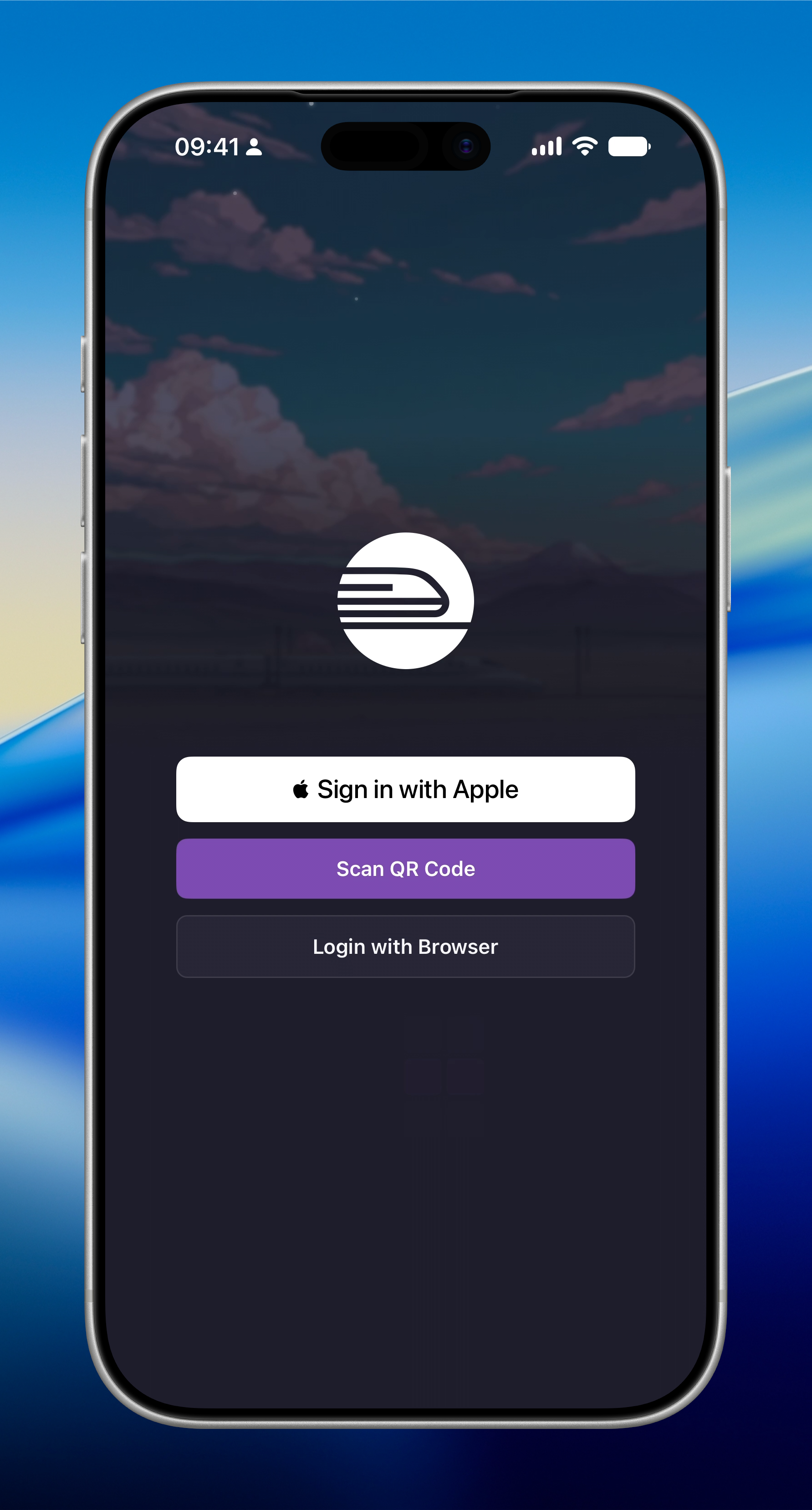
Sign in by scanning a QR code
Open the login page on another device
On a computer where you're already signed in to Railway, go to railway.com/mobile/login. A QR code will appear.
Tap Scan QR Code in the app
On the sign-in screen, tap Scan QR Code and allow camera access when prompted.
Scan the code
Point your phone at the QR code on screen. You'll be signed in automatically and dropped into your dashboard.
If the code stops working, refresh the page on your computer to reveal a new one, then scan again.
That's it. You're signed in. 🚂