Deploy a Scala Play App
Play is a high velocity and productive web framework for Java and Scala. It is based on a lightweight, stateless, web-friendly architecture and features predictable and minimal resource consumption (CPU, memory, threads) for highly-scalable applications thanks to its reactive model, based on Pekko Streams.
This guide covers how to deploy a Scala Play app to Railway in four ways:
Now, let's create a Play app!
Create a Play app
Note: If you already have a Play app locally or on GitHub, you can skip this step and go straight to the Deploy Play App to Railway.
To create a new Scala Play app, ensure that you have JDK and sbt installed on your machine.
Run the following command in your terminal to create a new Play app:
sbt newA list of templates will be shown to select from. Select the playframework/play-scala-seed.g8 template.
- Give it a name,
helloworld. - Give it an organization name,
com.railwayguide - Hit Enter for the rest to use the latest versions of play, scala and sbt scaffold.
A new Scala Play app will be provisioned in the helloworld directory.
Modify Scala Play views and set up database config
Step 1 : Modify the Index File
Open the project in your editor. Head over to the app/views/index.scala.html file.
Modify it to the following:
@()

@main("Welcome to Play") {
  <h1>Welcome to Play!</h1>
  <h1>Hello World, Railway!</h1>
}
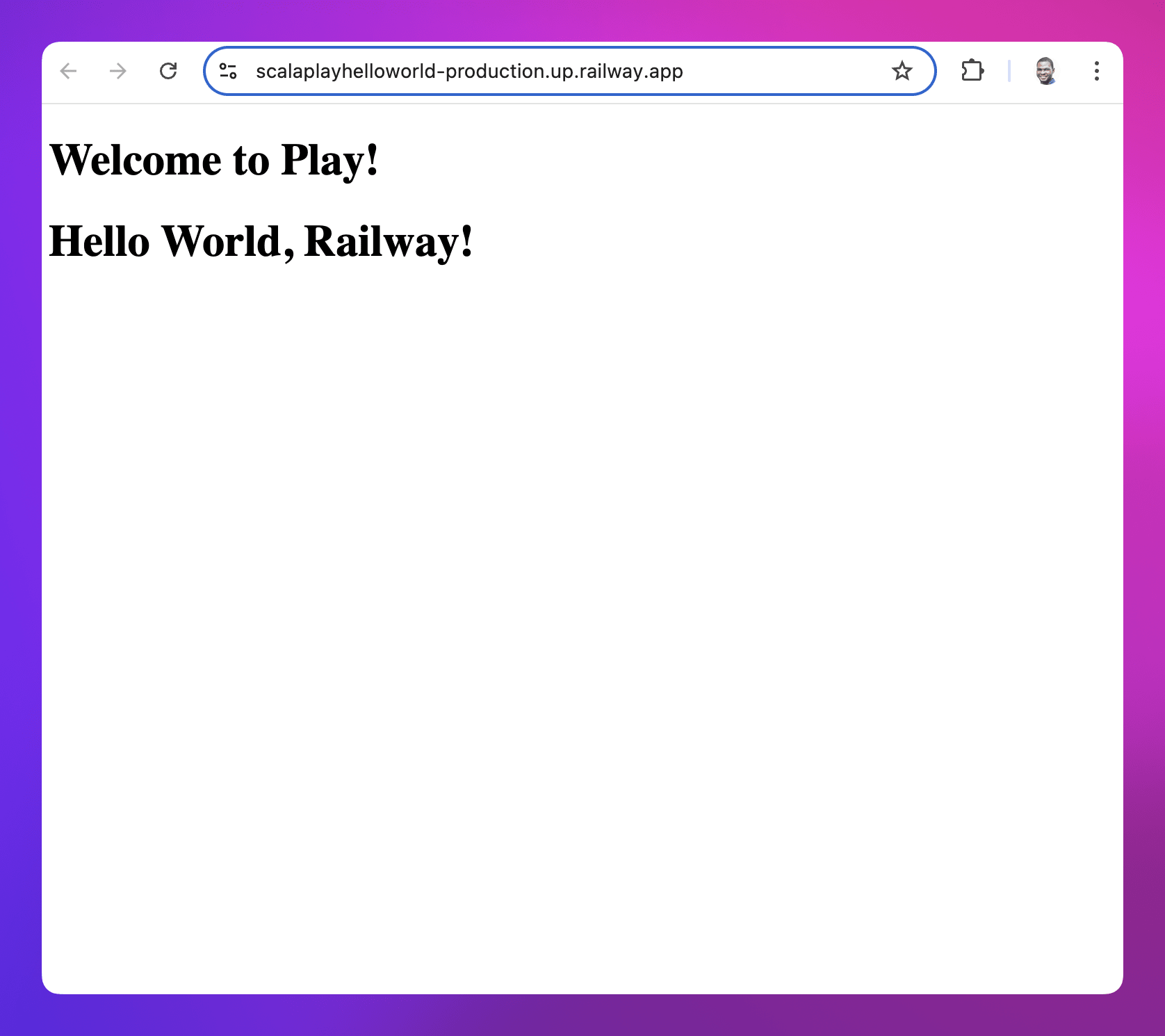
This change adds a new heading, which you'll see when you run the app locally.
Step 2 : Run the App Locally
- Now, let’s run the app locally to verify your changes. You should see the new headers appear in the browser.
Step 3 : Add PostgreSQL Driver as a Dependency
Play doesn’t provide built-in database drivers, so you need to add the PostgreSQL JDBC driver manually to your project.
In your build.sbt, add the following dependency:
libraryDependencies += "org.postgresql" % "postgresql" % "42.7.4" // Always use the latest stable versionStep 4 : Configure PostgreSQL in application.conf
Next, configure the PostgreSQL database connection in conf/application.conf:
# Default database configuration using PostgreSQL
db.default.driver = org.postgresql.Driver
db.default.url = "jdbc:postgresql://username:password@127.0.0.1:5432/scala_play"  # Replace with correct credentials
Make sure to replace username and password with your PostgreSQL credentials.
Step 5 : Update Project Dependencies
To download the PostgreSQL driver and any updated dependencies, run the following:
sbt updateStep 6 : Add Database Migration Tool (Flyway)
Play doesn’t include built-in support for database migrations, so Flyway will be used.
- Install Flyway Plugin: Open your
project/plugin.sbtand add the Flyway plugin:
addSbtPlugin("io.github.davidmweber" % "flyway-sbt" % "7.4.0")- Configure Flyway in
build.sbt: Enable Flyway and configure the database connection in yourbuild.sbt:
name := """helloworld"""
organization := "com.railwayguide"
version := "1.0-SNAPSHOT"
executableScriptName := "main"

lazy val root = (project in file(".")).enablePlugins(PlayScala).enablePlugins(FlywayPlugin)

scalaVersion := "2.13.15"

libraryDependencies += guice
libraryDependencies += "org.scalatestplus.play" %% "scalatestplus-play" % "7.0.1" % Test
libraryDependencies += "org.postgresql" % "postgresql" % "42.7.4" // Latest version

flywayUrl := "jdbc:postgresql://127.0.0.1:5432/scala_play?user=<username>"  # Replace with correct credentials
flywayLocations := Seq("filesystem:src/main/resources/db/migration")
Replace username with your database username.
Step 7 : Create the Migration Files
- Create Migration Folder: Create the folder structure for your migration files:
src/main/resources/db/migration- Create Migration SQL File: In
src/main/resources/db/migration, create a schema migration file calledV1_0__create_employees_table.sqlwith the following content:
CREATE TABLE employee (
  id VARCHAR(20) PRIMARY KEY,
  first_name VARCHAR(30),
  last_name VARCHAR(30),
  email VARCHAR(30),
  admin BOOLEAN
);
Step 8 : Run Database Migrations
Once your migration file is in place, run the Flyway migration with the following command:
sbt flywayMigrateThis will apply the migration and create the employee table in your PostgreSQL database.
Check your database to confirm that the employee table has been successfully created. You can use a database tool like psql or any PostgreSQL client to view the table.
Run the Play app locally
Next, run sbt run in the terminal to build the project, install all the dependencies and start the embedded Pekko HTTP server.
Open your browser and go to http://localhost:9000 to see the app.
Prepare Scala Play app for deployment
-
Set Application Secret:
- Open up the
application.conffile and add the following to it to set the app's secret.play.http.secret.key=${?APPLICATION_SECRET}
- Open up the
-
Set Database URL:
- Open up the
application.conffile and add the following to it to ensure theDATABASE_URLis read from the environment variable.db.default.url="jdbc:${?DATABASE_URL}"
- Open up the
-
Set Allowed Hosts:
- By default, Play ships with a list of default Allowed Hosts filter. This is the list of allowed valid hosts = ["localhost", ".local", "127.0.0.1"]. You need to add an option to allow Railway hosts,
[".up.railway.app"]. - Add the following to the
application.conffile:scala play.filters.hosts.allowed=[".up.railway.app"]Note: Railway provided domains end in.up.railway.app. Once you add your custom domain, please update the allowed hosts to the new URL.
- By default, Play ships with a list of default Allowed Hosts filter. This is the list of allowed valid hosts = ["localhost", ".local", "127.0.0.1"]. You need to add an option to allow Railway hosts,
-
Add sbt-native-packager sbt plugin:
-
Add the
sbt-native-packagersbt plugin toproject/plugins.sbtaddSbtPlugin("com.github.sbt" % "sbt-native-packager" % "x.x.x") -
Enable the
JavaAppPackagingplugin inbuild.sbtand set theexecutableScriptNametomain. Yourbuild.sbtshould be looking like this now:name := """helloworld""" organization := "com.railwayguide" version := "1.0-SNAPSHOT" executableScriptName := "main" lazy val root = (project in file(".")).enablePlugins(PlayScala).enablePlugins(JavaAppPackaging).enablePlugins(FlywayPlugin) scalaVersion := "2.13.15" libraryDependencies += guice libraryDependencies += "org.scalatestplus.play" %% "scalatestplus-play" % "7.0.1" % Test libraryDependencies += "org.postgresql" % "postgresql" % "42.7.4" // Always use the latest stable version flywayUrl := sys.env.getOrElse("DATABASE_URL", "jdbc:postgresql://127.0.0.1:5432/scala_play?user=username") flywayLocations := Seq("filesystem:src/main/resources/db/migration") -
Run
sbt updateto install thesbt-native-packagerand update the dependencies.
-
Now you're ready to deploy to Railway!
Deploy the Play app to Railway
Railway offers multiple ways to deploy your Scala app, depending on your setup and preference.
One-click deploy from a template
If you’re looking for the fastest way to get started, the one-click deploy option is ideal.
Click the button below to begin:

It is highly recommended that you eject from the template after deployment to create a copy of the repo on your GitHub account.
Note: You can also choose from a variety of Scala app templates created by the community.
Deploy from the CLI
-
Install the Railway CLI:
- Install the CLI and authenticate it using your Railway account.
-
Initialize a Railway Project:
- Run the command below in your Luminus app directory.
railway init - Follow the prompts to name your project.
- After the project is created, click the provided link to view it in your browser.
- Run the command below in your Luminus app directory.
-
Add a Postgres Database Service:
- Run
railway add -d postgres. - Hit Enter to add it to your project.
- A database service will be added to your Railway project.
- Run
-
Add a Service and Environment Variable:
- Run
railway add. - Select
Empty Servicefrom the list of options. - In the
Enter a service nameprompt, enterapp-service. - In the
Enter a variableprompt, enterAPPLICATION_SECRET=<generated-app-secret>where<generated-app-secret>is the secret generated from runningplayGenerateSecretin your terminal. - In the
Enter a variableprompt, enterDATABASE_URL=${{Postgres.DATABASE_URL}}.- The value,
${{Postgres.DATABASE_URL}}, references the URL of your new Postgres database. Learn more about referencing service variables.
- The value,
Note: Explore the Railway CLI reference for a variety of options.
- Run
-
Deploy the Application:
- Run
railway upto deploy your app.- This command will scan, compress and upload your app's files to Railway. You’ll see real-time deployment logs in your terminal.
- Once the deployment is complete, proceed to generate a domain for the app service.
- Run
-
Set Up a Public URL:
- Run
railway domainto generate a public URL for your app. - Visit the new URL to see your app live in action!
- Run
Deploy from a GitHub repo
To deploy a Scala Play app to Railway directly from GitHub, follow the steps below:
-
Create a New Project on Railway:
- Go to Railway to create a new project.
-
Deploy from GitHub:
- Select Deploy from GitHub repo and choose your repository.
- If your Railway account isn’t linked to GitHub yet, you’ll be prompted to do so.
- Select Deploy from GitHub repo and choose your repository.
-
Add Environment Variables and Provision a Database Service:
- Click Add Variables, but hold off on adding anything just yet. First, proceed with the next step.
- Right-click on the Railway project canvas or click the Create button, then select Database and choose Add PostgreSQL.
- This will create and deploy a new PostgreSQL database for your project.
- Once the database is deployed, you can return to adding the necessary environment variables:
DATABASE_URL: Set the value to${{Postgres.DATABASE_URL}}(this references the URL of your new Postgres database). Learn more about referencing service variables.APPLICATION_SECRET: Set the value to the generated app secret.
-
Deploy the App Service:
- Click Deploy on the Railway project canvas to apply your changes.
-
Verify the Deployment:
- Once the deployment completes, go to View logs to check if the server is running successfully.
Note: During the deployment process, Railway will automatically detect that it’s a Scala app.
-
Set Up a Public URL:
- Navigate to the Networking section under the Settings tab of your new service.
- Click Generate Domain to create a public URL for your app.
Use a Dockerfile
-
Create a
Dockerfilein the Play app's root directory. -
Add the content below to the
Dockerfile:# Use the Scala sbt official image # https://hub.docker.com/r/sbtscala/scala-sbt/tags FROM sbtscala/scala-sbt:eclipse-temurin-21.0.5_11_1.10.5_3.5.2 # Create and change to the app directory. WORKDIR /app # Copy local code to the container image. COPY . ./ # Build the app. RUN sbt stage # Run the app CMD ["./target/universal/stage/bin/main"] -
Either deploy via the CLI or from GitHub.
Railway automatically detects the Dockerfile, and uses it to build and deploy the app.
Note: Railway supports also deployment from public and private Docker images.
This guide covers the main deployment options on Railway. Choose the approach that suits your setup, and start deploying your Scala apps seamlessly!
Next steps
Explore these resources to learn how you can maximize your experience with Railway: