Using Volumes
Volumes allow you to store persistent data for services on Railway.
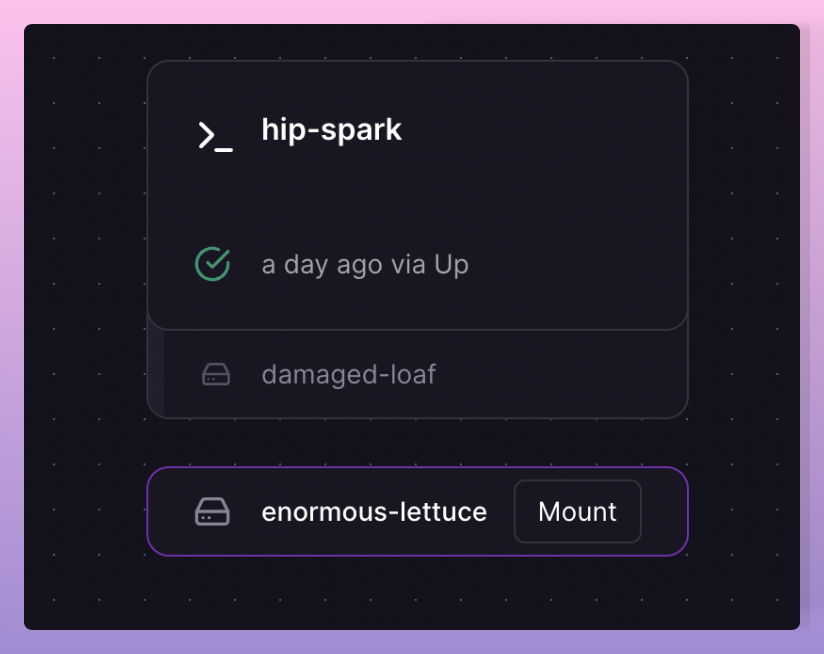
Creating a volume
You can create a new volume through the Command Palette (⌘K)
or by right-clicking the project canvas to bring up a menu:

via command palette

via right-click menu
When creating a volume, you will be prompted to select a service to connect the volume to:

You must configure the mount path of the volume in your service:

Using the volume
The volume mount point you specify will be available in your service as a directory to which you can read/write. If you mount a volume to /foobar, your application will be able to access it at the absolute path /foobar.
Manage volume files
Use the Railway CLI to inspect and manage files stored on a volume.
railway volume browse /The browse command opens an interactive TUI where you can browse, upload, download, edit, rename, and delete files.
For non-interactive workflows, use railway volume files:
railway volume files list /
railway volume files download /backup.tar ./backup.tar
railway volume files upload ./backup.tar /backup.tar
See railway volume for the full command reference.
Relative paths
Railway's build system puts your application files in an /app folder at the root of the container. If your application writes to a directory at a relative path, and you need to persist that data on the volume, your mount path should include the app path.
For example, if your application writes data to ./data, you should mount the volume to /app/data.
Provided variables
Attaching a Volume to a service will automatically make these environment variables available to the service at runtime:
RAILWAY_VOLUME_NAME: Name of the volume (e.g.foobar)RAILWAY_VOLUME_MOUNT_PATH: Mount path of the volume (e.g./foobar)
You do not need to define these variables on the service, they are automatically set by Railway at runtime.
Volume availability
Volumes are mounted to your service's container when it is started, not during build time.
If you write data to a directory at build time, it will not persist on the volume, even if it writes to the directory to which you have mounted the volume.
Note: Volumes are not mounted during pre-deploy time, if your pre-deploy command attempts to read or write data to a volume, it should be done as part of the start command.
Volumes are not mounted as overlays.
Permissions
Volumes are mounted as the root user. If you run an image that uses a non-root user, you should set the following variable on your service:
RAILWAY_RUN_UID=0Live Resizing the volume
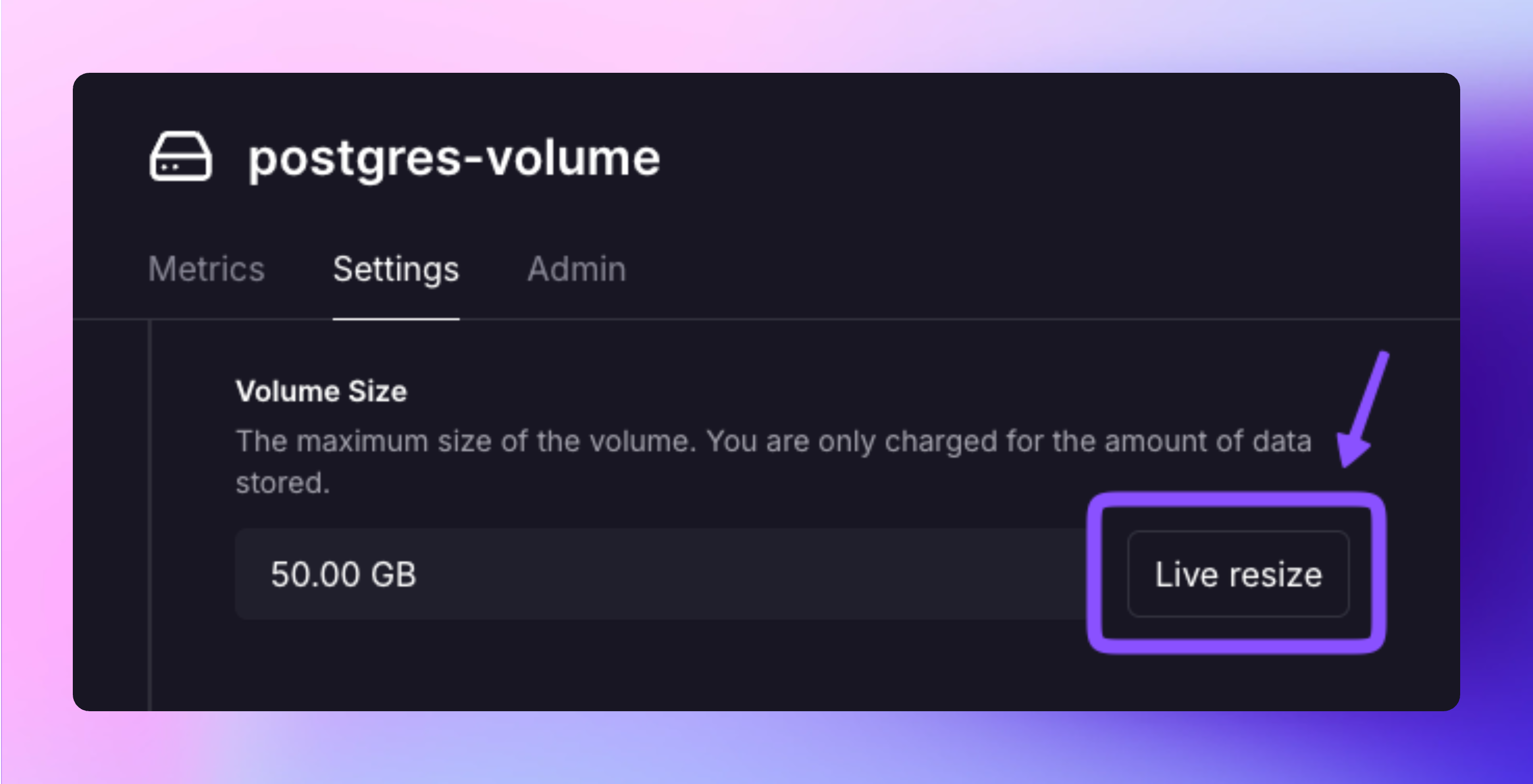
To increase capacity in a volume, you can "live resize" it from the volume settings. Live resize is available on all paid plans (Hobby and Pro).
- Click on the volume to open the settings
- Click
Live Resize - Follow the prompts to live resize the volume
Railway performs volume resizing live without any downtime. The resize operation expands the underlying storage while your service continues running, and the filesystem is automatically extended to utilize the additional space. Your application maintains full read/write access throughout the entire process.
In certain scenarios, such as when a volume reaches 100% capacity, the system will automatically perform an offline resize instead to run data integrity checks. This will restart your service and result in brief downtime during the resize operation.
Backups
Services with volumes support manual and automated backups, backups are covered in the backups reference guide.