SAML Single Sign-On
SAML SSO is available on Railway Enterprise.
SAML Single Sign-On (SSO) allows workspace members to sign in using your organization’s Identity Provider (IdP), including Okta, Auth0, Microsoft Entra ID, Google Workspace, and more.
New users signing in with your Identity Provider are automatically added to your workspace as workspace members.
Configuring SAML SSO
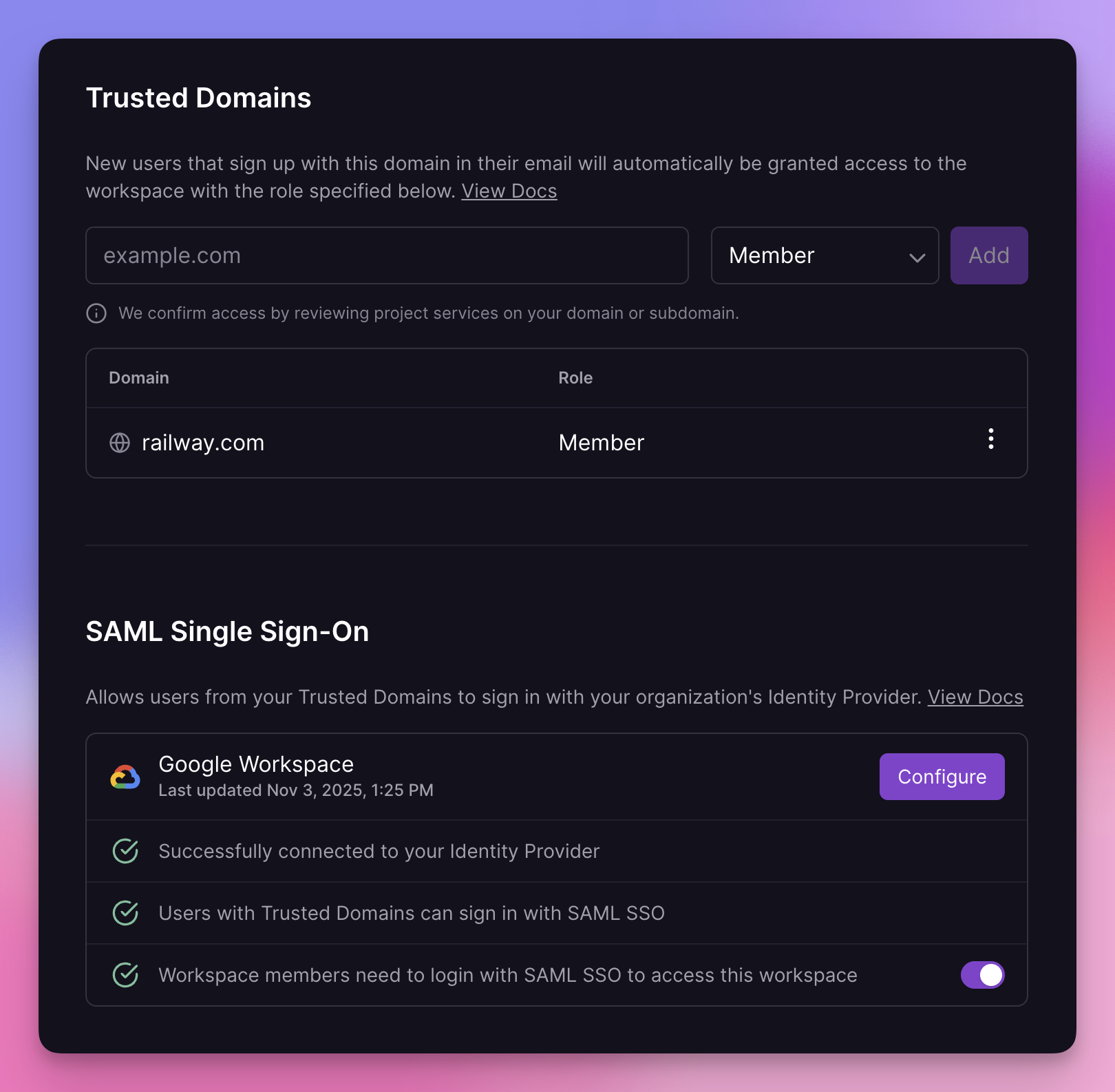
To configure SAML SSO, go to your workspace’s People settings. You must be a workspace admin with access to your Identity Provider’s configuration panel.
- Add your organization’s email domain(s) as Trusted Domains.
- In the SAML Single Sign-On section, click Configure and follow the guided setup to connect your Identity Provider to Railway.
- Optionally, enforce SAML SSO to require members to log in through your Identity Provider.
Once configured, users can login using SAML SSO using their organization email. Existing users must update their Railway email if it differs from their Identity Provider email.
If you’re a Railway Enterprise customer and don’t see the SAML settings in your workspace, please contact us.
Enforcing SAML SSO
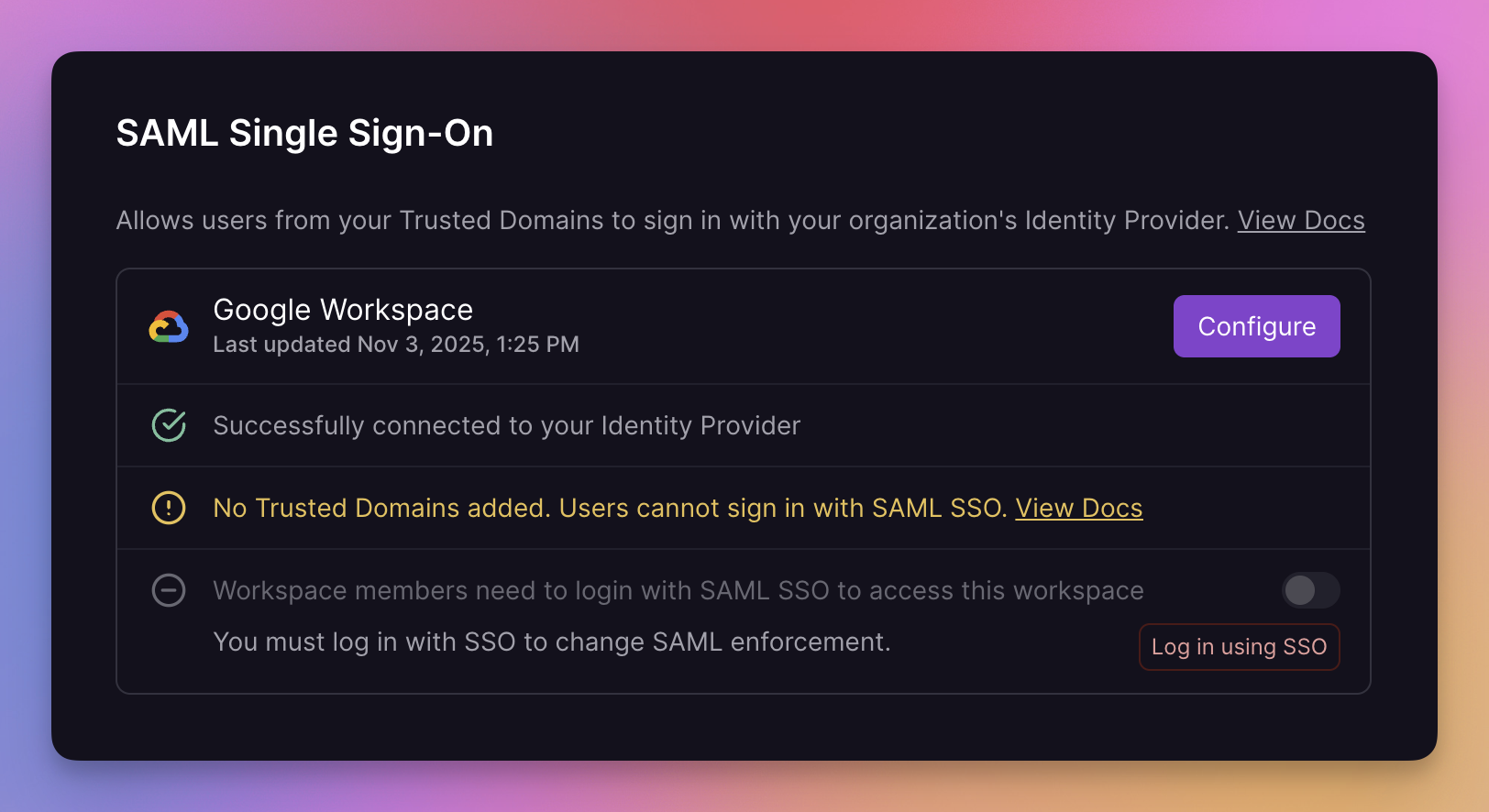
Workspace admins can enforce SAML SSO to ensure all members access the workspace with your Identity Provider.
- Enable enforcement by toggling "Members need to login with SAML SSO."
- Only workspace admins already logged in with SAML SSO can enable enforcement.
- When enforcement is active, users not authenticated with SAML SSO can’t open the workspace or access its resources.
- Enforcement takes effect immediately. Active users without SAML authentication will be prompted to re-authenticate.
Note: Enforcement will not limit which login methods a user can use. Because Railway users can be members of multiple workspaces, they can still log in with other methods, but must use SAML SSO to access the SAML-enforced workspace.
Login using SSO
After SAML SSO is enabled, users can log in using their organization’s email by selecting "Log in using Email" → "Log in using SSO".
Alternatively, go directly to https://railway.com/login#login-saml.
Railway also supports IdP-initiated SSO, allowing users to access Railway directly from their Identity Provider’s dashboard.
Supported identity providers
We support all identity providers that use SAML or OIDC, including:
- Okta
- Microsoft Entra ID (Azure AD)
- Auth0
- JumpCloud
- ADP
- CAS
- ClassLink
- Cloudflare
- Ping Identity
- CyberArk
- Duo
- Keycloak
- LastPass
- Login.gov
- miniOrange
- NetIQ
- OneLogin
- Oracle
- Rippling
- Salesforce
- Shibboleth
- SimpleSAMLphp
- VMware Workspace
and any other provider compatible with SAML or OIDC.
SSO-related events
You can receive notifications when important SSO-related events were triggered:
- SSO Connected: when an Identity Provider is successfully connected to the workspace.
- SSO Disconnected: when the Identity Provider is disconnected from the workspace.
- SSO Updated: when SAML enforcement is enabled or disabled.
- SAML Certificate requires renewal: when the SAML certificate is nearing expiration or has expired. This event is triggered multiple times before and after expiration.
- SAML Certificate renewed: when the SAML certificate is successfully renewed.