Deploy an Express App
Express is a fast and flexible web application framework for Node.js that provides a simple and minimalistic approach to building web servers and APIs. It is known for its speed and unopinionated nature, allowing developers to structure their applications as they see fit while offering powerful features.
This guide covers how to deploy an Express app to Railway in four ways:
Now, let's create an Express app!
Create an Express app
Note: If you already have an Express app locally or on GitHub, you can skip this step and go straight to the Deploy Express App to Railway.
To create a new Express app, ensure that you have Node installed on your machine.
Create a directory, helloworld, and cd into it.
Run the following command in your terminal to create a new Express app within the helloworld directory:
npx express-generator --view=pugA new Express app will be provisioned for you in the helloworld directory using pug as the view engine.
Run the Express app locally
Run npm install to install all the dependencies.
Next, start the app by running the following command:
npm startLaunch your browser and navigate to http://localhost:3000 to view the app.
If you'd prefer to run the app on a different port, simply use the command PORT=8080 npm start in the terminal.
Afterward, you can access the app at http://localhost:8080.
Add and configure database
Note: This app uses Postgres. If you don’t have it installed locally, you can either install it or use a different Node.js database package of your choice.
-
Create a database named
expresshelloworld_dev. -
Install the pg-promise package:
npm i pg-promise- Open the
routes/index.jsfile and modify the content to the code below:
const express = require("express");
const pgp = require("pg-promise")();
const db = pgp(
  "postgres://username:password@127.0.0.1:5432/expresshelloworld_dev",
);
const router = express.Router();

/* GET home page. */
router.get("/", function (req, res, next) {
  db.one("SELECT NOW()")
    .then(function (data) {
      // Render the page only after receiving the data
      res.render("index", {
        title: "Hello World, Railway!",
        timeFromDB: data.now,
      });
    })
    .catch(function (error) {
      console.error("ERROR:", error);
      // If there’s an error, send a 500 response and do not call res.render
      res.status(500).send("Error querying the database");
    });
});

module.exports = router;
The code above sets up a simple Express app with a route handler for the home page. It uses the pg-promise library to connect to a Postgres database and runs a query to fetch the current time from the database using SELECT NOW(). Upon receiving the data, it renders the index view with the fetched time, sending it to the client along with a title.
If an error occurs during the database query, the code catches the error, logs it, and sends a 500 status response to the client, indicating that there was an issue querying the database.
The page is only rendered after successfully receiving the database response to ensure proper handling of the data.
- Open the
views/index.pugfile, and update it to display thetimeFromDBvalue on the page.
extends layout

block content
  h1= title
  p Welcome to #{title}
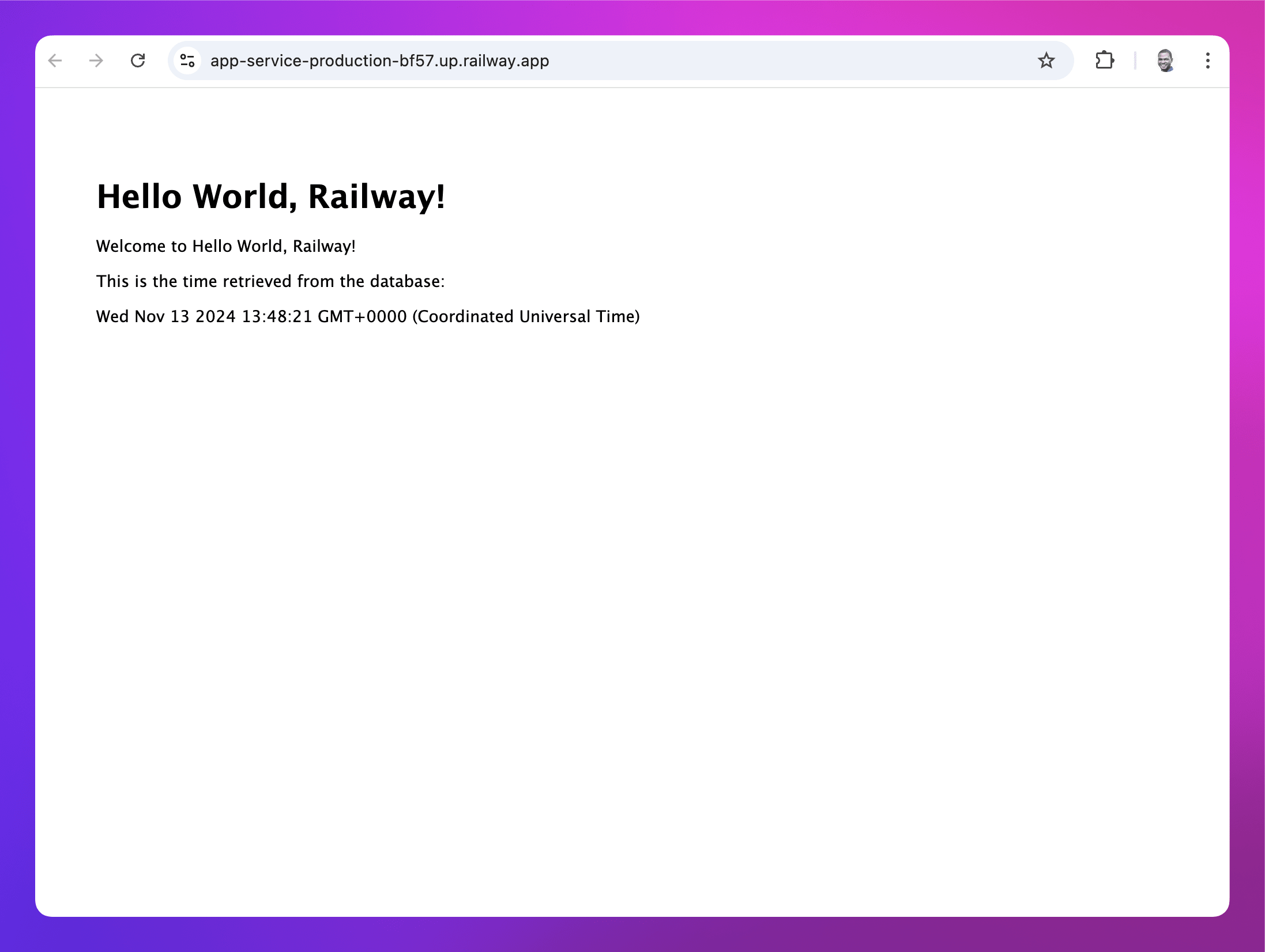
  p This is the time retrieved from the database:
p #{timeFromDB}- Run the app again to see your changes in action!
Prepare Express app for deployment
In the routes/index.js file, replace the hardcoded Postgres database URL with an environment variable:
...
const db = pgp(process.env.DATABASE_URL);
...
This allows the app to dynamically pull the correct database configuration from Railway during deployment.
Deploy the Express app to Railway
Railway offers multiple ways to deploy your Express app, depending on your setup and preference.
One-click deploy from a template
If you’re looking for the fastest way to get started with Express, Pug and connected to a Postgres database, the one-click deploy option is ideal.
Click the button below to begin:

For Express API, here's another template you can begin with:
It is highly recommended that you eject from the template after deployment to create a copy of the repo on your GitHub account.
Note: You can also choose from a variety of Express app templates created by the community.
Deploy from the CLI
-
Install the Railway CLI:
- Install the CLI and authenticate it using your Railway account.
-
Initialize a Railway Project:
- Run the command below in your Express app directory.
railway init - Follow the prompts to name your project.
- After the project is created, click the provided link to view it in your browser.
- Run the command below in your Express app directory.
-
Add a Postgres Database Service:
- Run
railway add -d postgres. - Hit Enter to add it to your project.
- A database service will be added to your Railway project.
- Run
-
Add a Service and Environment Variable:
- Run
railway add. - Select
Empty Servicefrom the list of options. - In the
Enter a service nameprompt, enterapp-service. - In the
Enter a variableprompt, enterDATABASE_URL=${{Postgres.DATABASE_URL}}.- The value,
${{Postgres.DATABASE_URL}}, references the URL of your new Postgres database. Learn more about referencing service variables.
- The value,
Note: Explore the Railway CLI reference for a variety of options.
- Run
-
Deploy the Application:
- Run
railway upto deploy your app.- This command will scan, compress and upload your app's files to Railway. You’ll see real-time deployment logs in your terminal.
- Once the deployment is complete, proceed to generate a domain for the app service.
- Run
-
Set Up a Public URL:
- Run
railway domainto generate a public URL for your app. - Visit the new URL to see your app live in action!
- Run
Deploy from a GitHub repo
To deploy an Express app to Railway directly from GitHub, follow the steps below:
-
Create a New Project on Railway:
- Go to Railway to create a new project.
-
Deploy from GitHub:
- Select Deploy from GitHub repo and choose your repository.
- If your Railway account isn’t linked to GitHub yet, you’ll be prompted to do so.
- Select Deploy from GitHub repo and choose your repository.
-
Add Environment Variables and Provision a Database Service:
- Click Add Variables, but hold off on adding anything just yet. First, proceed with the next step.
- Right-click on the Railway project canvas or click the Create button, then select Database and choose Add PostgreSQL.
- This will create and deploy a new PostgreSQL database for your project.
- Once the database is deployed, you can return to adding the necessary environment variables:
DATABASE_URL: Set the value to${{Postgres.DATABASE_URL}}(this references the URL of your new Postgres database). Learn more about referencing service variables.
-
Deploy the App Service:
- Click Deploy on the Railway project canvas to apply your changes.
-
Verify the Deployment:
- Once the deployment completes, go to View logs to check if the server is running successfully.
Note: During the deployment process, Railway will automatically detect that it's a Node.js app via Railpack.
-
Set Up a Public URL:
- Navigate to the Networking section under the Settings tab of your new service.
- Click Generate Domain to create a public URL for your app.
Use a Dockerfile
-
Create a
Dockerfilein the Express app's root directory. -
Add the content below to the
Dockerfile:# Use the Node official image # https://hub.docker.com/_/node FROM node:lts # Create and change to the app directory. WORKDIR /app # Copy local code to the container image COPY . ./ # Install packages RUN npm ci # Serve the app CMD ["npm", "run", "start"] -
Either deploy via the CLI or from GitHub.
Railway automatically detects the Dockerfile, and uses it to build and deploy the app.
Note: Railway supports also deployment from public and private Docker images.
This guide covers the main deployment options on Railway. Choose the approach that suits your setup, and start deploying your Express apps seamlessly!
Next steps
Explore these resources to learn how you can maximize your experience with Railway: