Deploy a Phoenix App with Distillery
Phoenix is popular Elixir framework designed for building scalable, maintainable, and high-performance web applications. It is known for its ability to handle real-time features efficiently, like WebSockets, while leveraging Elixir's concurrency model, which is built on the Erlang Virtual Machine (BEAM).
In this guide, you'll learn how to deploy Phoenix apps with Distillery to Railway.
Create a Phoenix app with Distillery
Note: If you already have a Phoenix app locally or on GitHub, you can skip this step and go straight to the Deploy Phoenix App with Distillery to Railway.
To create a new Phoenix app, ensure that you have Elixir and Hex package manager installed on your machine. Once everything is set up, run the following command in your terminal to install the Phoenix application generator:
mix archive.install hex phx_newNext, run the following command:
mix phx.new helloworld_distillerySelect Y to install all dependencies.
This command will create a new Phoenix app named helloworld_distillery with some optional dependencies such as:
- Ecto for communicating with a database such as PostgreSQL, MySQL etc
- Phoenix live view for building realtime & interactive web apps.
- Phoenix HTML and Tailwind CSS for HTML apps.
Configure database
Next, navigate into the helloworld directory using the cd command.
Open up the config/dev.exs file. You'll notice that a new Phoenix app is already set up with PostgreSQL settings. It assumes the database has a postgres user with the right permissions and a default password of postgres. Update the username and password to match your local PostgreSQL account credentials.
Note: If you prefer using a different database, like MySQL, you can easily switch the database adapter in the mix.exs file. Simply remove the Postgrex dependency and add MyXQL instead. For detailed instructions, check out this guide on using other databases in Phoenix.
The default database name is set to helloworld_dev, but feel free to change it to whatever you'd prefer.
Next, create the database for your app by running the following command:
mix ecto.createA database will be created for your app.
Add and configure Distillery
- Open up the
mix.exsfile and add Distillery to the deps function:
defp deps do
    [ ...,
     {:distillery, "~> 2.1"},
      ...,
    ]
  end
Now, run mix deps.get to update your dependencies.
- Open up
config/prod.exsfile and update the endpoint section to the following:
config :helloworld_distillery, HelloworldDistilleryWeb.Endpoint,
  cache_static_manifest: "priv/static/cache_manifest.json",
  server: true,
  root: ".",
  version: Application.spec(:phoenix_distillery, :vsn)
server configures the endpoint to boot the Cowboy application http endpoint on start.
root configures the application root for serving static files
version ensures that the asset cache will be busted on versioned application upgrades.
- Initialize your Distillery release by running the following command:
mix distillery.initThis will create the rel/config.exs and rel/vm.args files. A rel/plugins directory will be created too.
- Create a Mix config file at
rel/config/config.exs. Here, a mix config provider is being created. Add the following to it:
import Config

port = String.to_integer(System.get_env("PORT") || "4000")
default_secret_key_base = :crypto.strong_rand_bytes(43) |> Base.encode64

config :helloworld_distillery, HelloworldDistilleryWeb.Endpoint,
  http: [port: port],
  url: [host: "localhost", port: port],
  secret_key_base: System.get_env("SECRET_KEY_BASE") || default_secret_key_base
Now, update the rel/config.exs file to use your new provider. In the environment :prod part of the file, replace with the following:
environment :prod do
  set include_erts: true
  set include_src: false
  set cookie: :"Jo2*~U0C1x!*E}!o}W*(mx=pzd[XWG[bW)T~_Kjy3eJuEJ;M&!eqj7AUR1*9Vw]!"
  set config_providers: [
    {Distillery.Releases.Config.Providers.Elixir, ["${RELEASE_ROOT_DIR}/etc/config.exs"]}
  ]
  set overlays: [
    {:copy, "rel/config/config.exs", "etc/config.exs"}
  ]
end- Finally, let's configure Ecto to fetch the database credentials from the runtime environment variables.
Open the lib/helloworld_distillery/repo.ex file and modify it to this:
defmodule HelloworldDistillery.Repo do
  use Ecto.Repo,
    otp_app: :helloworld_distillery,
    adapter: Ecto.Adapters.Postgres,
    pool_size: 10
  def init(_type, config) do
    {:ok, Keyword.put(config, :url, System.get_env("DATABASE_URL"))}
  end
end
Build the release with Distillery
To build the release, run the following command:
npm run deploy --prefix assets && MIX_ENV=prod mix do phx.digest, distillery.release --env=prodHandling errors
If you encounter the following error after running the command:
==> Invalid application `:sasl`! The file sasl.app does not exist or cannot be loaded.You need to modify your mix.exs file to include :sasl. Open the file and add :sasl to the extra_applications list in the application function:
def application do
    [
      mod: {HelloworldDistillery.Application, []},
      extra_applications: [:logger, :runtime_tools, :sasl]
    ]
  end
After saving your changes, try running the command again as a super user to prevent access errors:
sudo npm run deploy --prefix assets && MIX_ENV=prod mix do phx.digest, distillery.release --env=prodAdditional Errors
If you encounter this error:
Failed to archive release: _build/prod/rel/helloworld_distillery/releases/RELEASES: no such file or directoryYou’ll need to create the RELEASES directory manually. Once created, run the command again.
Successful build
Upon a successful build, you should see output similar to the following:
...
==> Packaging release..
Release successfully built!
To start the release you have built, you can use one of the following tasks:

    # start a shell, like 'iex -S mix'
    > _build/prod/rel/helloworld_distillery/bin/helloworld_distillery console

    # start in the foreground, like 'mix run --no-halt'
    > _build/prod/rel/helloworld_distillery/bin/helloworld_distillery foreground

    # start in the background, must be stopped with the 'stop' command
    > _build/prod/rel/helloworld_distillery/bin/helloworld_distillery start

If you started a release elsewhere, and wish to connect to it:

    # connects a local shell to the running node
    > _build/prod/rel/helloworld_distillery/bin/helloworld_distillery remote_console

    # connects directly to the running node's console
    > _build/prod/rel/helloworld_distillery/bin/helloworld_distillery attach

For a complete listing of commands and their use:

    > _build/prod/rel/helloworld_distillery/bin/helloworld_distillery help
Test the release with Distillery locally
Now, test your release locally. First, create your database by running the following command:
mix ecto.createNext, export the necessary environment variables by running:
export DATABASE_URL=postgresql://username:password@127.0.0.1:5432/helloworld_distillery
export SECRET_KEY_BASE=<your-secret-key-base>
With the environment set up, you can start the release with:
_build/prod/rel/helloworld_distillery/bin/helloworld_distillery foregroundOnce your app is running, open your browser and visit http://localhost:4000 to see it in action.
With your app up and running locally, let's move on to deploying the release to Railway!
Prepare app for deployment
Since Distillery requires custom build phases, set the following in your Railway service settings:
- Build command:
mix local.hex --force && mix local.rebar --force && mix deps.get --only prod && mix compile && mkdir -p _build/prod/rel/helloworld_distillery/releases/RELEASES && mix do phx.digest, distillery.release --env=prod - Start command:
mix ecto.setup && _build/prod/rel/helloworld_distillery/bin/helloworld_distillery foreground
Also set the MIX_ENV environment variable to prod in your service variables.
See Start Command and Build Command for more info.
Tip: For Distillery builds, you may also consider using a Dockerfile for full control over the build process.
Deploy Phoenix app to Railway
Railway offers multiple ways to deploy your Phoenix app, depending on your setup and preference. Choose any of the following methods:
One-click deploy from a template
If you’re looking for the fastest way to get started, the one-click deploy option is ideal. It sets up a Phoenix app with Distillery along with a Postgres database.
Click the button below to begin:

After deploying, it is recommended that you eject from the template to create a copy of the repository under your own GitHub account. This will give you full control over the source code and project.
Deploy from the CLI
To deploy the Phoenix app using the Railway CLI, please follow the steps:
-
Install the Railway CLI:
- Install the CLI and authenticate it using your Railway account.
-
Initialize a Railway Project:
- Run the command below in your Phoenix app directory.
railway init - Follow the prompts to name your project.
- After the project is created, click the provided link to view it in your browser.
- Run the command below in your Phoenix app directory.
-
Deploy the Application:
- Use the command below to deploy your app:
railway up - This command will scan, compress and upload your app's files to Railway. You’ll see real-time deployment logs in your terminal.
Note: You might encounter an error––
warning: the VM is running with native name encoding of latin1 whichmay cause Elixir to malfunction as it expects utf8..... Don’t worry, you’ll address this in the next step. - Use the command below to deploy your app:
-
Add a Database Service:
- Run
railway add. - Select
PostgreSQLby pressing space and hit Enter to add it to your project. - A database service will be added to your Railway project.
- Run
-
Configure Environment Variables:
- Go to your app service Variables section and add the following:
SECRET_KEY_BASE: Set the value to the your app's secret key. You can runmix phx.gen.secretlocally to generate one.LANGandLC_CTYPE: Set both values toen_US.UTF-8. This sets your app's locale and gets rid of the native name encoding of latin1 warning.DATABASE_URL: Set the value to${{Postgres.DATABASE_URL}}(this references the URL of your new Postgres database). Learn more about referencing service variables.ECTO_IPV6: Set the value totrueto enable your Phoenix app to connect to the database through the IPv6 private network.
- Use the Raw Editor to add any other required environment variables in one go.
- Go to your app service Variables section and add the following:
-
Redeploy the Service:
- Click Deploy on the Railway Project Canvas to apply your changes.
-
Verify the Deployment:
- Once the deployment completes, go to View logs to check if the server is running successfully.
-
Set Up a Public URL:
- Navigate to the Networking section under the Settings tab of your new service.
- Click Generate Domain to create a public URL for your app.
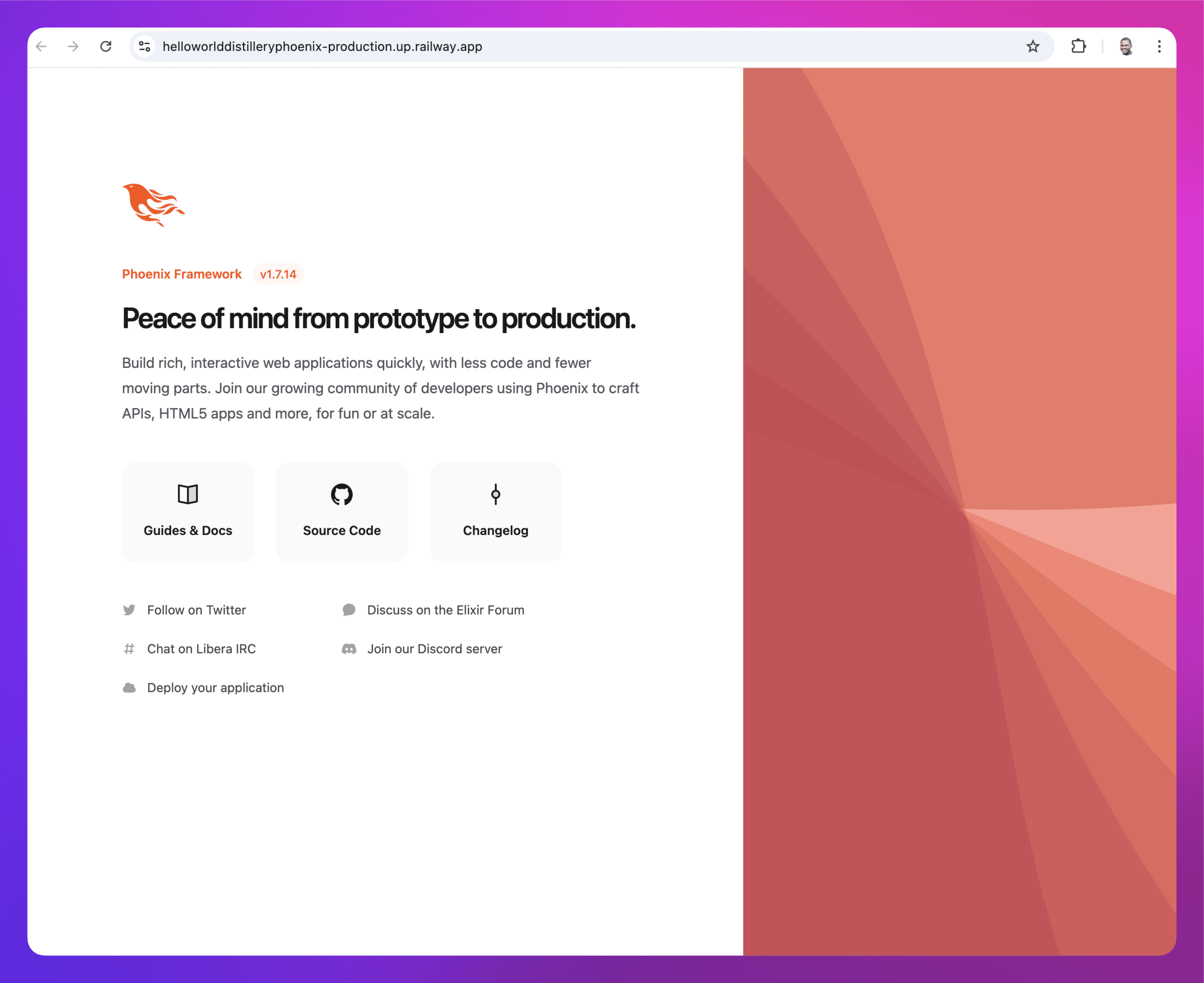
Deploy from a GitHub repo
To deploy the Phoenix app to Railway, start by pushing the app to a GitHub repo. Once that’s set up, follow the steps below to complete the deployment process.
-
Create a New Project on Railway:
- Go to Railway to create a new project.
-
Deploy from GitHub:
- Select Deploy from GitHub repo and choose your repository.
- If your Railway account isn’t linked to GitHub yet, you’ll be prompted to do so.
- Select Deploy from GitHub repo and choose your repository.
-
Add Environment Variables and Provision a Database Service:
- Click Add Variables, but hold off on adding anything just yet. First, proceed with the next step.
- Right-click on the Railway project canvas or click the Create button, then select Database and choose Add PostgreSQL. This will create and deploy a new PostgreSQL database for your project.
- Once the database is deployed, you can return to adding the necessary environment variables:
SECRET_KEY_BASE: Set the value to the your app's secret key. You can runmix phx.gen.secretlocally to generate one.LANGandLC_CTYPE: Set both values toen_US.UTF-8to ensure proper locale settings and avoid the native name encoding of latin1 warning.DATABASE_URL: Set the value to${{Postgres.DATABASE_URL}}(this references the URL of your new Postgres database). Learn more about referencing service variables.ECTO_IPV6: Set the value totrueto enable your Phoenix app to connect to the database through the IPv6 private network.
-
Deploy the App Service:
- Click Deploy on the Railway project canvas to apply your changes.
-
Verify the Deployment:
- Once the deployment completes, go to View logs to check if the server is running successfully.
Note: During the deployment process, Railway will automatically detect that it’s an Elixir app.
-
Set Up a Public URL:
- Navigate to the Networking section under the Settings tab of your new service.
- Click Generate Domain to create a public URL for your app.
This guide covers the main deployment options on Railway. Choose the approach that suits your setup, and start deploying your Phoenix apps with Distillery effortlessly!
Next steps
Explore these resources to learn how you can maximize your experience with Railway: