Manage agents and sessions
A cloud agent is a machine. A session is a coding-agent process running on it. You can run several sessions on one machine, connect through a desktop app, and return to the same files later.
Find your agents
Run railway ca to browse agents and their running terminal sessions. For a list without opening the interface:
railway ca list
railway ca list --json
The default list finds agents you own across projects. Narrow it with --project and --environment. Agent names or IDs select existing machines for lifecycle commands.
Choose where agents run
For a new launch, Railway resolves the project and environment in this order:
| Order | Source |
|---|---|
| 1 | Explicit --project and --environment flags |
| 2 | The directory's linked project and environment |
| 3 | The default project saved by railway ca setup |
| 4 | Interactive setup when no target is available |
A stale link to a deleted project is ignored and can fall back to the configured default. Use railway link to repair it.
railway code --opencode --new --project <project-id> --environment productionUse railway ca setup --show to inspect saved preferences. The terminal interface also lets you change the launch target.
Reuse and create agents
Railway remembers agents between launches. It reuses the selected agent, wakes it if needed, and creates one when there is none to use. If several agents match and Railway cannot choose safely, select one explicitly.
For OpenCode, --agent chooses an existing agent; --new always creates a new VM:
railway code --opencode --agent <agent-name>
railway code --opencode --new
Desktop setup supports the same selection with any of its app flags. Use railway ca create when you want to provision a machine without opening a coding client:
railway ca create my-agent --project <project-id> --environment productionAgent names
New OpenCode agents have recognizable lowercase names:
| Coding agent | Example | Pattern |
|---|---|---|
| OpenCode | oc-railg-3ed | oc- + project label + three random letters/digits |
The label uses up to five letters or digits from the project name. When launching into your saved default Cloud Agents project, it comes from your local repository or directory name. Spaces and punctuation are removed. Existing agents keep their names.
Override the generated name when creating through railway code:
railway code --opencode --new --name reviewsThe naming pattern also applies to new OpenCode agents created through Desktop setup or Railway CA. A name helps you recognize an agent; server discovery checks its configuration rather than relying on the prefix.
Work in terminal sessions
In railway ca, select an agent to see its sessions and press Enter on a session to connect. Press n on an agent to start another session. Agents with no sessions occupy a single row; the status icon indicates when sessions are loading.
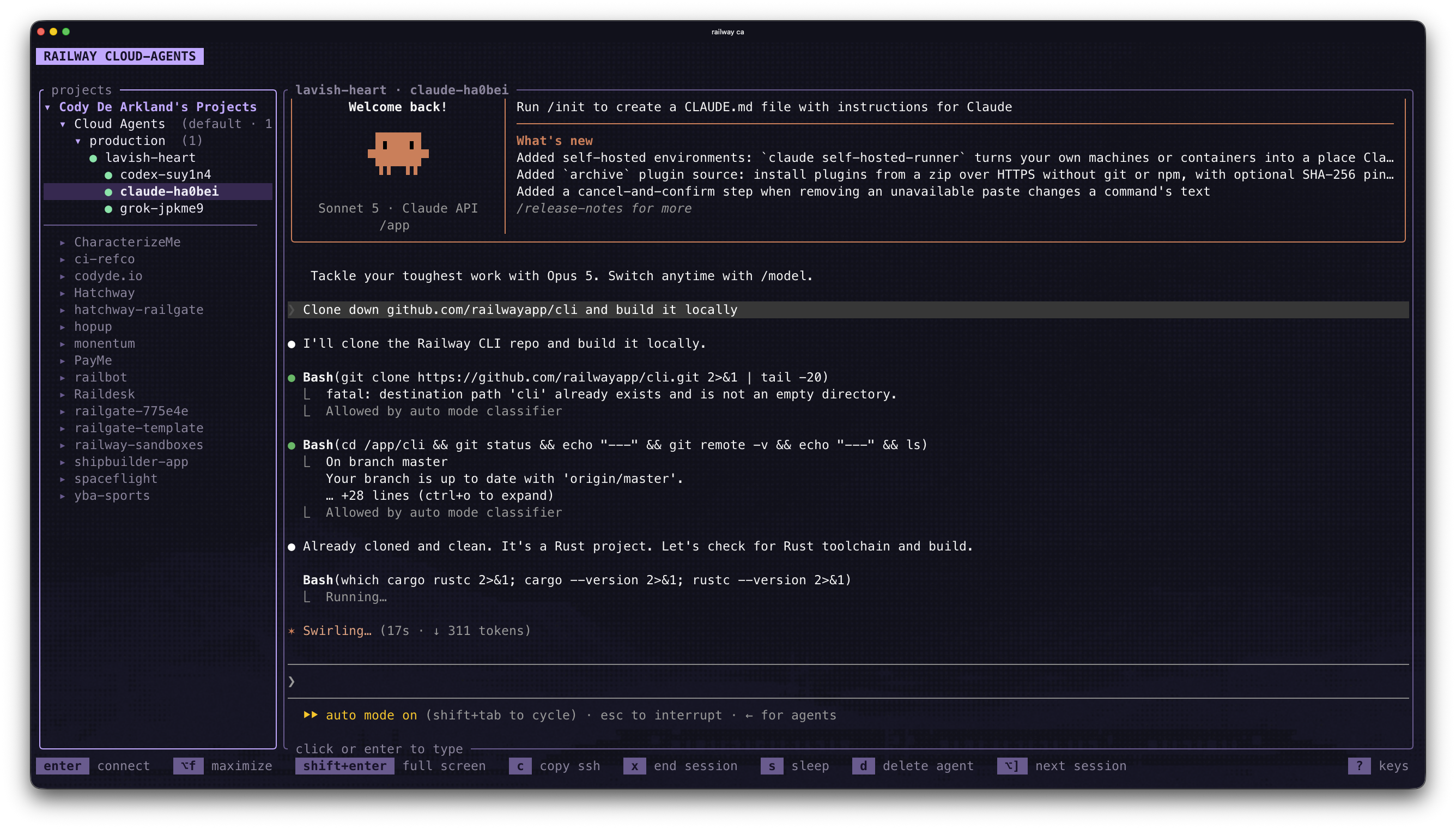
| Key | Action |
|---|---|
enter | Connect to a session and type in it |
shift+esc or ^] | Return keyboard control to the tree |
n | Start another session on the selected agent |
s / w / d | Sleep, wake, or delete an agent |
c | Copy a session's SSH command |
⌥f | Toggle the session between a full-width view and the tree |
? | Show the complete key reference |
Terminal sessions survive disconnects while the agent remains running. Sleeping stops those processes. Saved files and conversation history stay on disk, and your coding tool controls how a new process resumes that history.
All sessions on an agent share its disk. Use separate working directories or Git worktrees when tasks may edit the same files.
Connect from a desktop app
Use the guides for Claude Desktop, Codex Desktop, and OpenCode. Desktop chats and OpenCode server sessions are managed by those apps; the Railway CA tree lists its terminal sessions.
For OpenCode terminal clients, railway code --opencode connect discovers compatible running servers across your projects. A named connection can wake a saved server. See each client guide for details.
Sleep, wake, and delete
Disconnecting leaves the cloud agent running. There is no idle timeout. Stop compute explicitly when you no longer need the machine awake.
| Action | Running processes | Files | Compute billing |
|---|---|---|---|
| Disconnect a client | The VM remains running; the app controls its session | Retained | Continues |
| Sleep the agent | Stopped | Retained | Stops |
| Wake the agent | Start the tools or server you need again | Retained | Resumes |
| Delete the agent | Stopped | Deleted with the disk | Stops |
railway ca sleep <agent-name>Wake an agent before reconnecting Claude or Codex Desktop:
railway ca wake <agent-name>For OpenCode, rerun its Desktop setup or a named connect command after sleep. That wakes the VM and starts its managed server again.
Delete an agent and its disk when you no longer need them:
railway ca delete <agent-name>Deletion asks for confirmation. To sleep every running agent you own, use railway ca sleep --all; add an environment filter to narrow the scope. --keep-awake remains accepted for compatibility but is no longer needed.
Open a shell
Use the agent's name or ID:
railway ca ssh <agent-name> -- bashWithout a command, railway ca ssh can attach to a durable terminal session. Use --session <name> to select one. SSH requires the machine to be awake and never creates a replacement for a mistyped name.
Use the dashboard
The Agents tab in a project shows agent status and lets you open a console, view sessions, start work, copy an SSH command, or delete an agent. Use desktop setup from your computer when you want the CLI to write a connection into your installed app.