Access groups
Access groups are available on eligible committed spend plans. Contact us to learn more.
Access groups let workspace admins control which projects workspace members can access. Each group combines a set of people, a set of projects, and one project role.
You can configure groups before enabling them. Until you enable access groups, workspace members continue to access projects according to their workspace role.
How access groups work
When access groups are enabled, Railway determines project access from workspace administration, access group membership, and direct project permissions:
- Workspace admins can access every project, whether or not they belong to a group.
- Workspace members can access projects granted by their groups, projects shared with them directly, and projects they created.
- A person can belong to multiple groups, and a project can belong to multiple groups.
- If one person is granted access to a single project via different permission grants, Railway applies the highest role.
- A group-granted Admin role applies only to the group's projects. It can access restricted environments in those projects, but it doesn't grant workspace administration or bypass workspace Guardrails.
Railway applies access group visibility to everything a person signs in to, including the dashboard, API, CLI, MCP server, and Railway Agent tools.
Workspace API tokens
A workspace token authenticates as the workspace itself rather than as a person, so it has no group membership for Railway to evaluate. Workspace tokens can reach every project in the workspace, including projects that belong to no group, whether or not access groups are enabled.
Treat a workspace token as equivalent to workspace admin access:
- Share one only with people you would make workspace admins.
- Use a project token when an integration needs a single project. Project tokens stay scoped to the project they were created for.
New project creation
When access groups are enabled, a project created by a workspace member is a personal project. The creator receives the ADMIN role for that project, and the project is initially visible only to the creator and workspace admins.
A workspace admin can attach the project to a group to make it available to that group's members.
Attaching a project to a group does not remove the creator's ADMIN role. You can change the creator's direct access from the Members page under project settings.
Projects created by workspace admins also start without a group. Only workspace admins can access them until an admin attaches them to a group or grants direct project access.
Create an access group
Only workspace admins can create and manage access groups. You can create groups while enforcement is off without changing existing project access.
- Navigate to your workspace People settings.
- Select the Groups tab.
- Click New group.
- Enter a name and select the Default role.
- Add people and projects to the group.
- Click Create group.
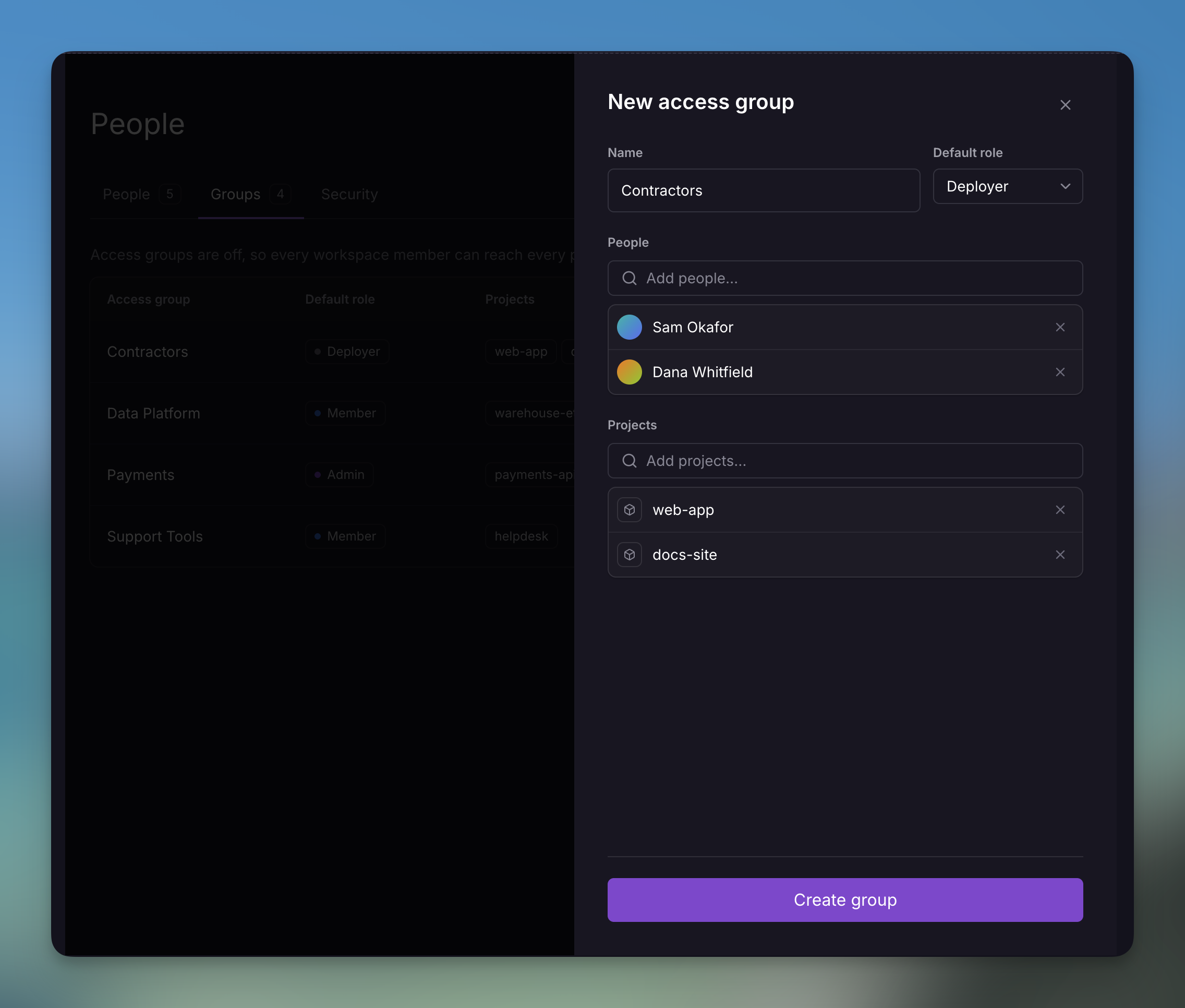
Members and projects can belong to more than one group. The group editor shows the people and projects that receive the selected role.
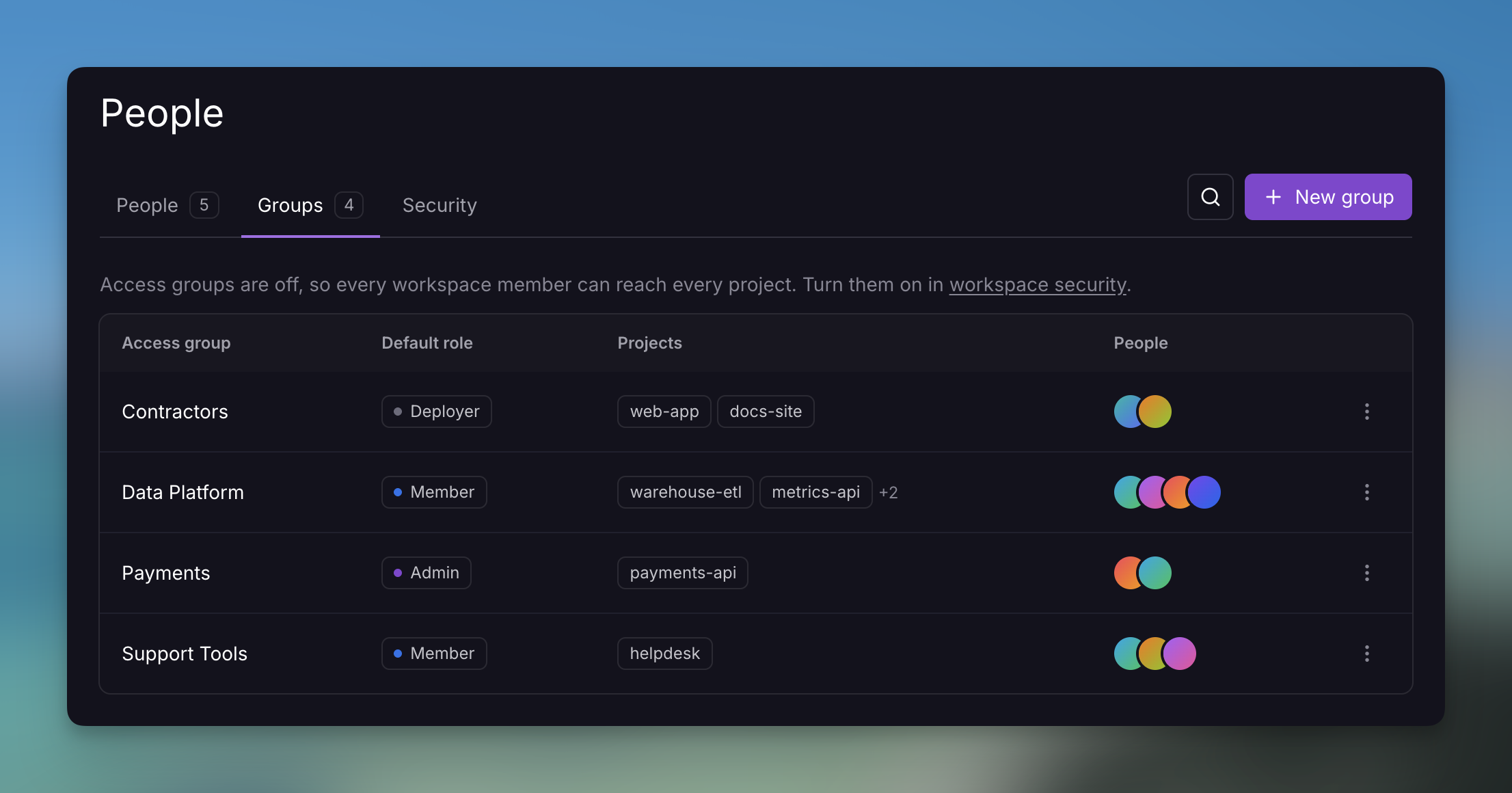
Edit or delete a group
Select a group from the Groups tab to change its name, default role, people, or projects, then click Save.
To delete a group, open its actions menu and click Delete group. Deleting a group removes the access it granted when enforcement is enabled. Direct project permissions remain unchanged.
Manage groups from a project
The Members page under project settings shows who can access the project and how they received access. Workspace admins can also attach the project to a group from this page.
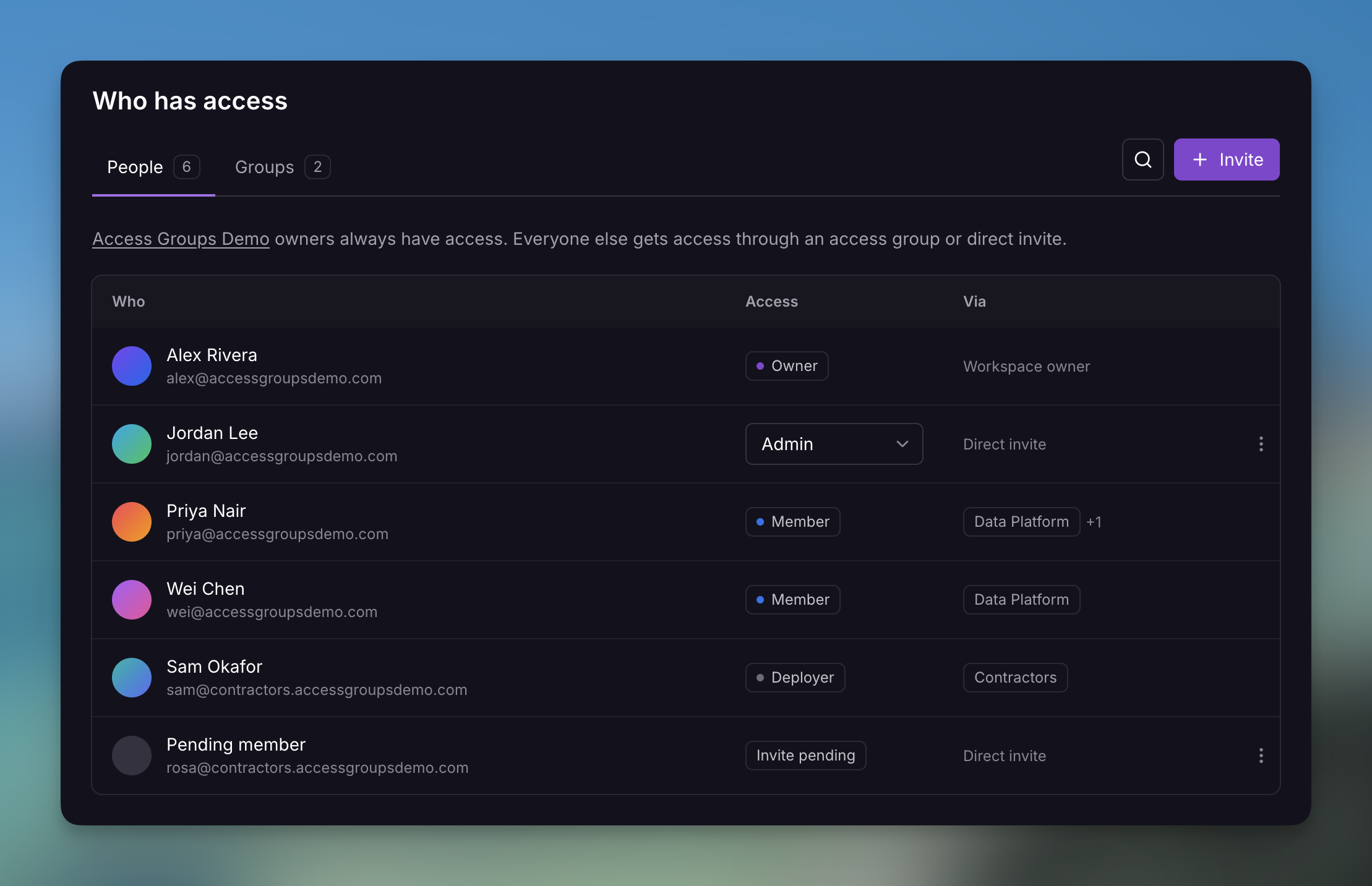
- Navigate to the project Settings page.
- Open Members, then select Groups.
- Click Add to group.
- Select the groups that need access, then save your changes.
The People tab shows everyone who can access the project, either via access group membership or direct project permissions.
Enable access groups
Enable access groups after you configure and review the groups for your workspace. Enabling the setting changes project visibility for every non-admin workspace member.
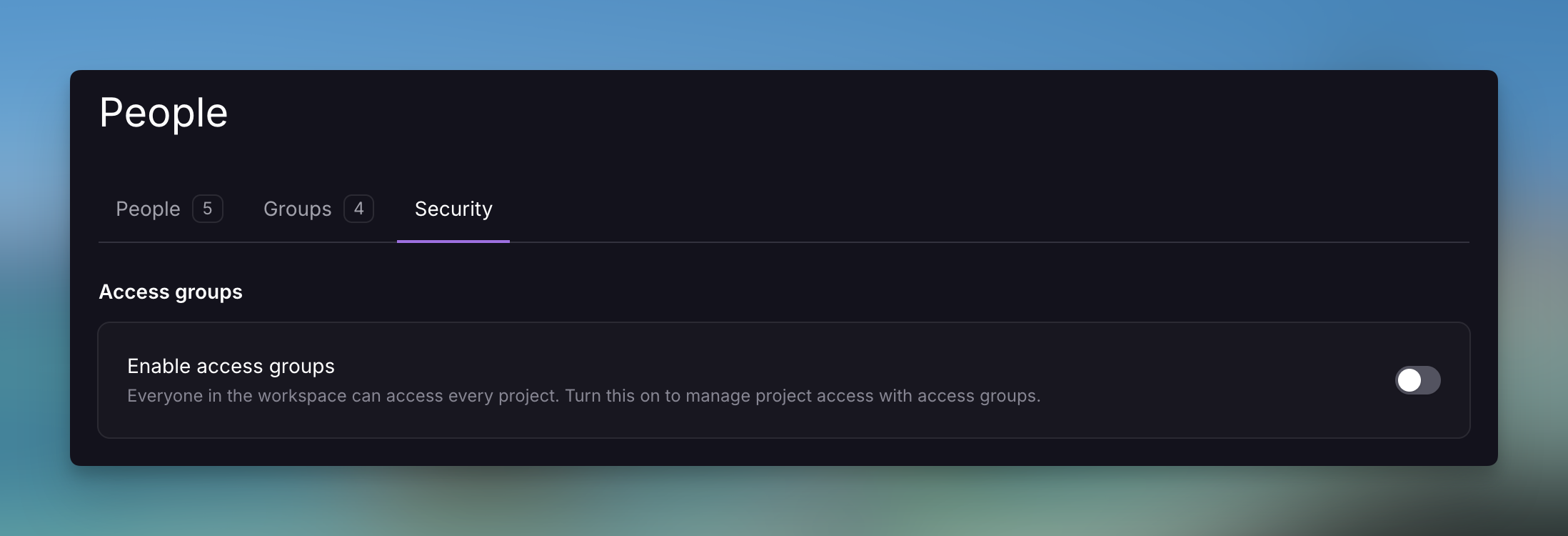
- Navigate to your workspace People settings.
- Select the Security tab.
- Under Access groups, toggle Enable access groups on.
- Review the access impact in the confirmation. Railway identifies any people who will lose project access and any projects that will become hidden from all non-admin members.
- Click Turn on.
The preview accounts for group grants, direct project permissions, and personal projects. The visibility change takes effect after you confirm it.
Enabling access groups does not change what a workspace token can reach. Review any tokens your workspace has issued alongside this change — see Workspace API tokens.
Disable access groups
Disabling access groups restores workspace-wide project visibility without deleting your group configuration.
When you turn access groups off, every workspace member can access every project according to their workspace role.
In the workspace Security tab, toggle Enable access groups off, review the confirmation, then click Turn off. You can continue editing the saved groups and enable them again later.
Audit access group changes
Railway records access group changes in the workspace audit log. Events include group creation, updates, deletion, membership changes, project changes, and enforcement changes.
Only workspace admins can view audit logs.