Cost Control
Railway provides controls over resource usage in the form of usage limits, resource limits, private networking, and serverless auto-sleeping of inactive services.
Usage limits
Usage Limits allow you to set a maximum limit on your usage for a billing cycle. If your resource usage for the billing cycle exceeds the limit you configured, we will shut down your workloads to prevent them from incurring further resource usage.
Configuring usage limits
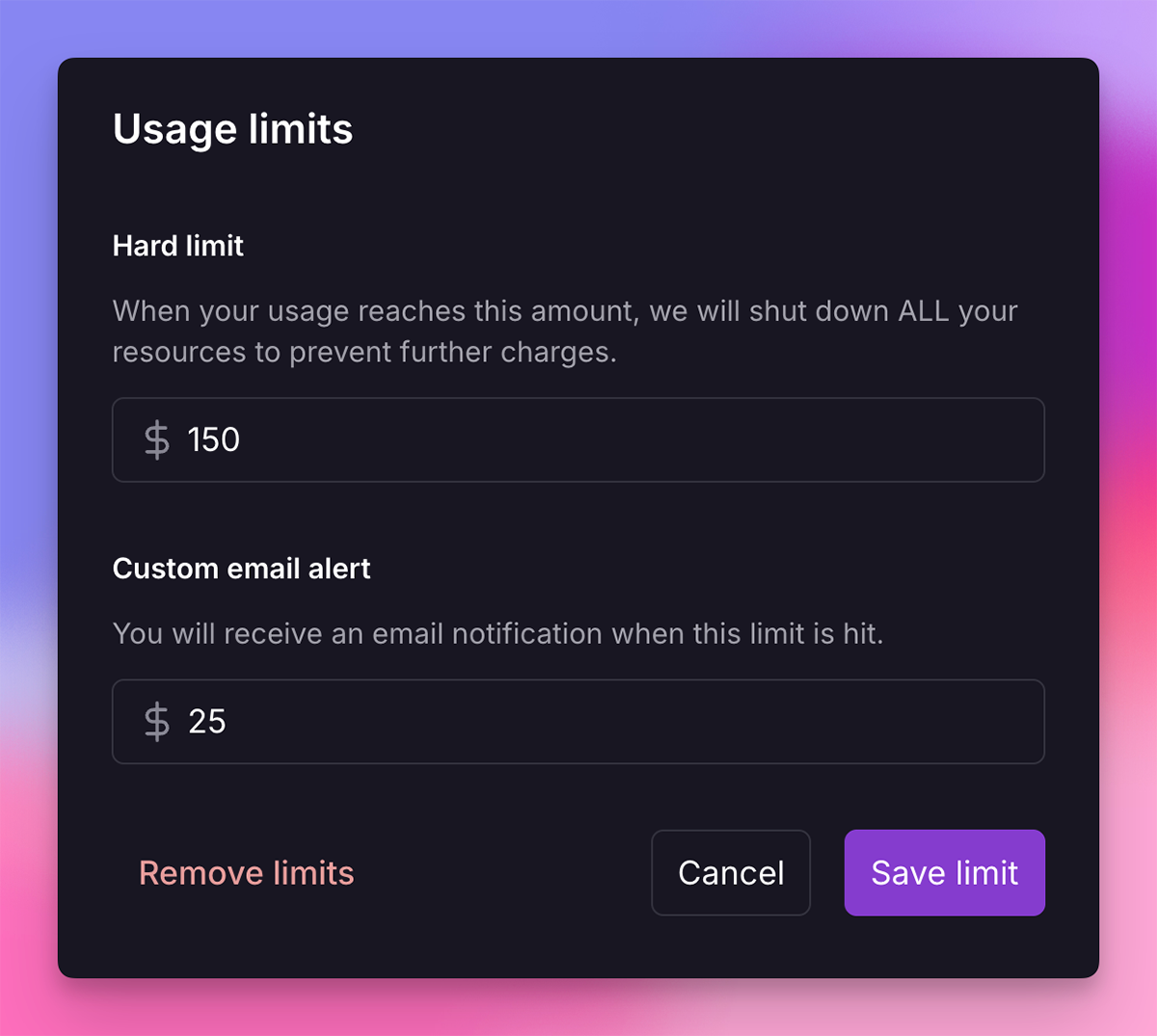
Visit the Workspace Usage page to set the usage limits. Once you click the Set Usage Limits button, you will see a modal where you can set a Custom email alert and a Hard limit separately for Compute Usage and Agent Usage.
You can also inspect and manage limits from the Railway CLI:
railway usage limit status
railway usage limit set --target workspace --soft 75 --hard 125
railway usage limit set --target agent --soft 7.50 --hard 20
See the railway usage reference for workspace selection,
validation rules, JSON output, and non-interactive usage.
Compute vs. Agent usage limits
Compute and Agent usage are tracked and limited independently:
- Compute Usage covers CPU, memory, storage, and network egress for your services.
- Agent Usage covers Railway Agent LLM consumption.
Hitting the Compute hard limit takes your workloads offline but leaves the agent available. Hitting the Agent hard limit disables the agent but leaves your workloads running.
By default, Agent Usage has a hard limit of $5 on the Hobby plan and $20 on the Pro plan. You can raise or lower this limit at any time from the Workspace Usage page, but unlike the Compute limit, the Agent limit cannot be removed.
Custom email alert
You can think of this as a soft limit. When your resource usage reaches the specified amount, we will email you that this threshold has been met. Your resources will remain unaffected.
Hard limit
Once your resource usage hits the specified hard limit, all your workloads will be taken offline to prevent them from incurring further resource usage. Think of the hard limit as the absolute maximum amount you're willing to spend on your infrastructure.
We will send you multiple reminders as your usage approaches your hard limit:
- When your usage reaches 75% of your hard limit
- When your usage reaches 90% of your hard limit
- When your usage reaches 100% of your hard limit and workloads have been taken down.
Usage limits FAQ
Replica limits
Replica limits allow you to limit the maximum amount of CPU and memory available to each replica.
To configure replica limits, navigate to your service's settings > Deploy > Replica Limits.

Setting replica limits too low will cause your service to crash.
Using replica limits makes sense in scenarios where:
- You don't want to risk a high bill due to unexpected spikes in usage
- You are okay with the service crashing if it exceeds the limit
Use private networking
Using Private Networking when communicating with other services (such as databases) within your Railway project will help you avoid unnecessary Network Egress costs.
With databases
Communicate with your Railway database over private networking by using the DATABASE_URL environment variable, instead of DATABASE_PUBLIC_URL.
With other services
If your Railway services need to communicate with each other, you can find the service's private URL in the service settings:
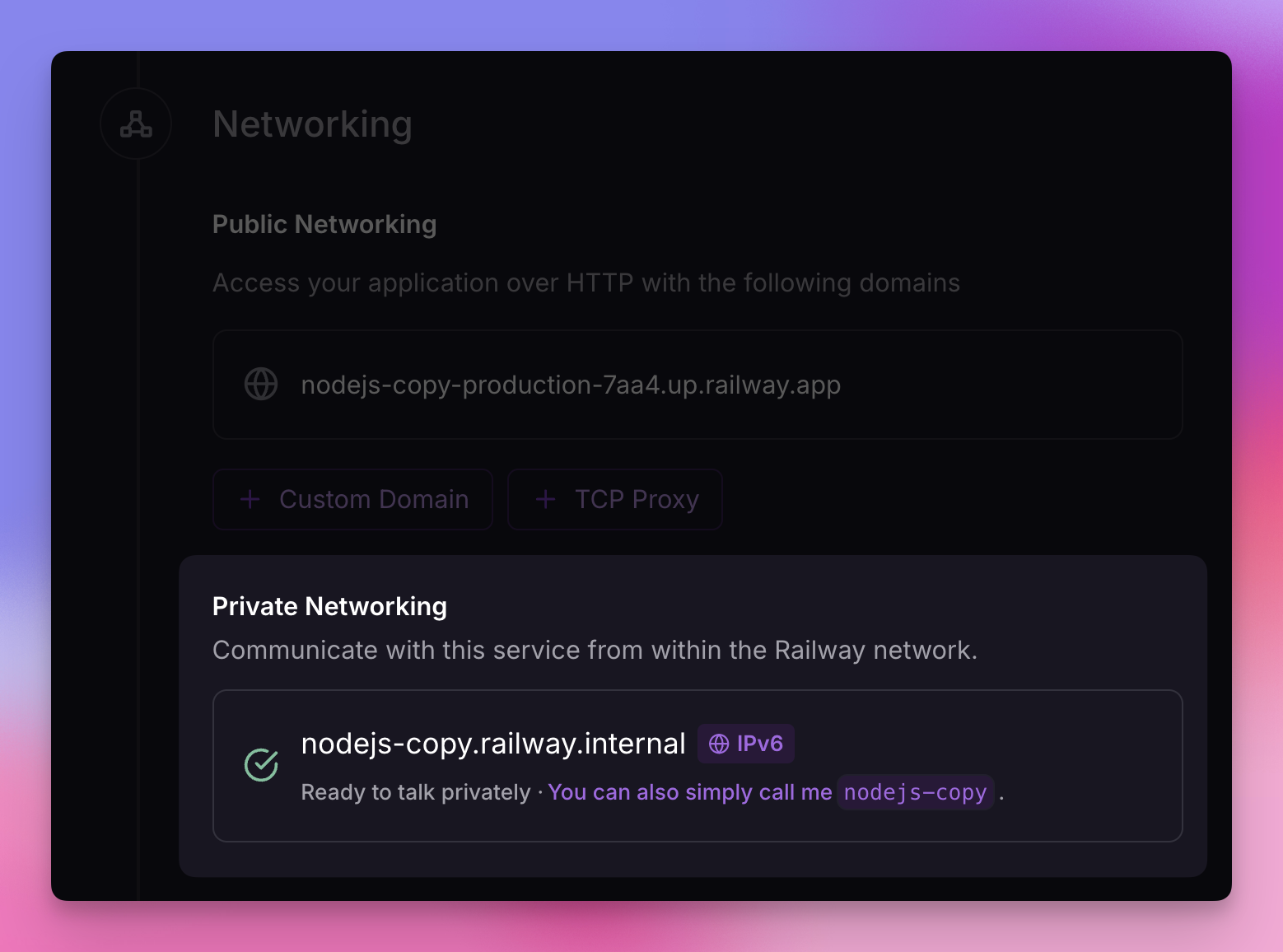
Learn more about Railway's Private Networking here.
Enabling serverless
Enabling Serverless on a service tells Railway to stop a service when it is inactive, effectively reducing the overall cost to run it.
To enable Serverless, toggle the feature on within the service configuration pane in your project:

- Navigate to your service's settings > Deploy > Serverless
- Toggle "Enable Serverless"
- To disable Serverless, toggle the setting again
Read more about how Serverless works in the Serverless page.