Projects
Projects are containers for environments and services in Railway.
If you are logged in, projects can be found on your project dashboard.
Project canvas

The project canvas is the default view for a project. Within it, a user can manage services and environments or select a service to view its configuration.
Project settings can be managed through the Settings button at the top right of the project canvas.
Project resources
- 100 GB outbound network bandwidth
- Ability to deploy multiple services
- Unlimited inbound network bandwidth
- Unlimited database services
Managing project info
A project's name and description can be changed from the General tab within a project's settings.
The project id can also be retrieved here.
Inviting members
Invite members to access a project through the Members tab in your Project Settings.
You can invite a member by sending an invitation to their email address, or by generating an invite link to send to them directly.
Click here to view the scope definitions for permissions.
Invite by email
Invite a new member via email by specifying their email address and scope of permissions, then click Invite.
This will send an email to the address specified containing a link to join your project.
Invite by link
Each project generates a project invite link. To invite someone via a link:
- Select the desired invited member scope
- Copy link and send to the invitee
Transferring projects
Projects can be transferred between workspaces or to other users. Both the source and destination must have an active Hobby or Pro plan subscription.
Transferring to another user
To transfer a project to another user, you must first add the user as a member of the project.
You can then transfer the project to the new member by selecting the three dots next to the user and choosing Transfer Ownership.
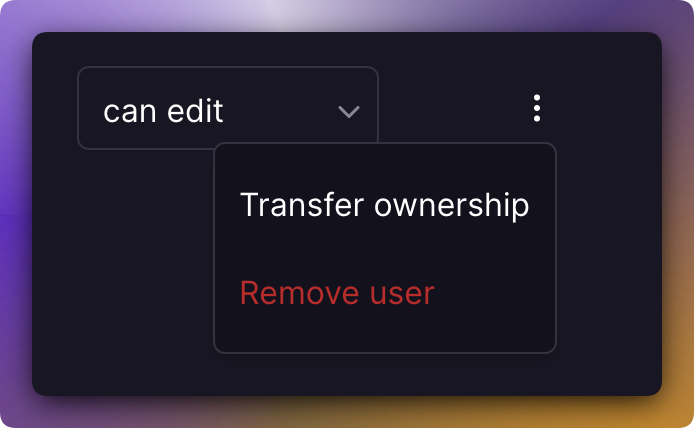
The recipient receives an email to confirm the transfer. They have 24 hours to accept.
Transferring between workspaces
You can transfer a project to another workspace that you're a member of. Inside your project, visit the Settings page and click the Transfer Project button to view the project transfer modal.

Note: You must be an Admin of the project to initiate a transfer. The destination workspace must have an active Hobby or Pro subscription. See the Workspaces reference for more information on workspace roles.
Viewing recent activity
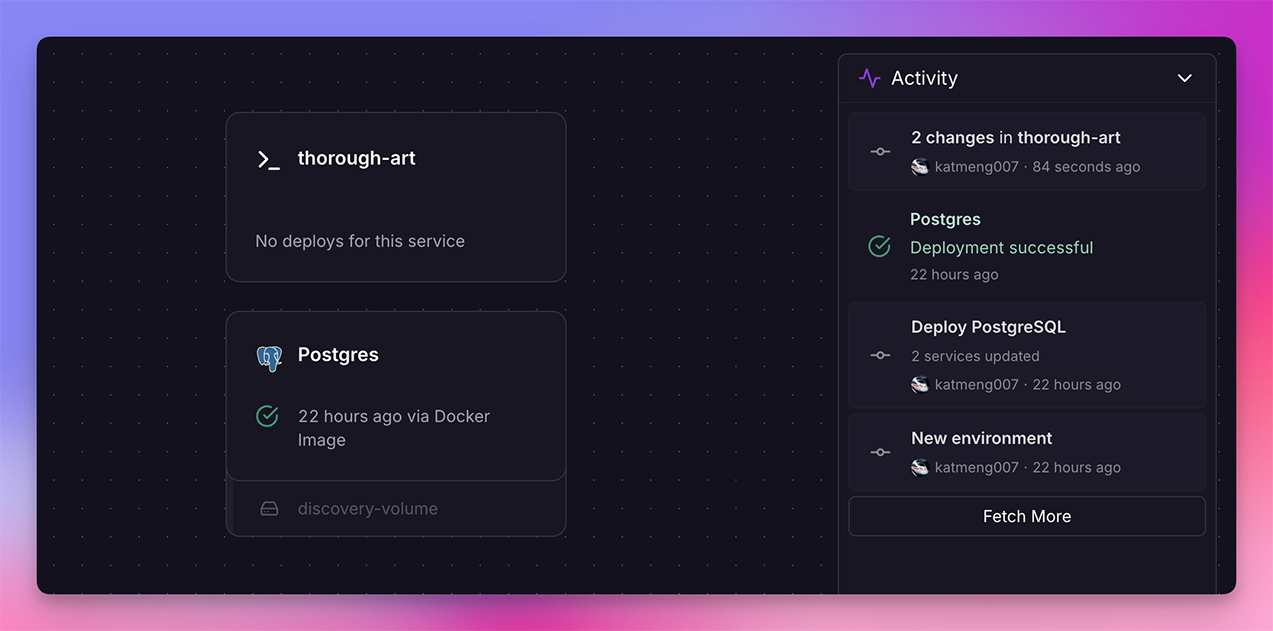
The activity feed shows all the changes that have been made to a project. This includes changes to services and volumes. You can click on a change to see everything that was committed.
Project visibility
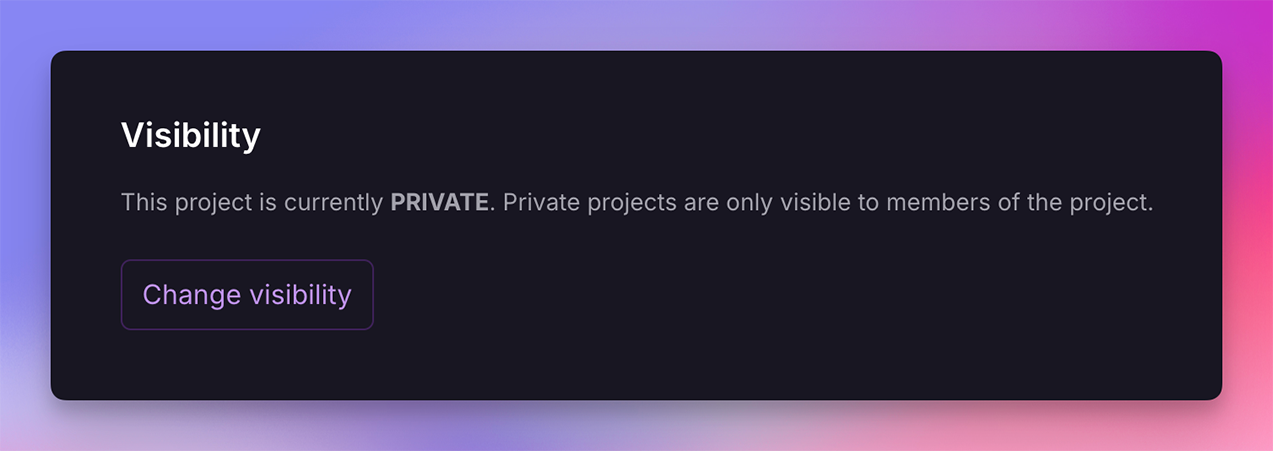
Projects are private by default and only accessible to members of the project.
Projects can be made public, to be shared in a read-only state with anyone on the internet.
Public visibility is helpful for educators who want to show students how their projects look before a user deploys their own.
- Viewers don't need a Railway account to see the project
- Environment variables are private from viewers
- Services and Deployment logs are public
To update your project's visibility, change the setting in your project settings:
Deleting a project
A project can be deleted by selecting the Delete Project button in the Danger tab. Deleting a project will delete all services, environments, and deployments associated with the project.
Specific services within a project can also be deleted from this page.