Storage Buckets
Railway Buckets are private, S3-compatible object storage buckets for your projects. They give you durable object storage on Railway without needing to wire up an external provider. Use them for file uploads, user-generated content, static assets, backups, or any data that needs reliable object storage.
Getting Started
To create a bucket in your project, click the Create button on your canvas, select Bucket, and select its region and optionally change its name. You aren't able to change your region after you create your bucket.
Unlike traditional S3, you can choose a custom display name for your bucket. The actual S3 bucket name is that display name plus a short hash, ensuring it stays unique across workspaces.
Connecting to Your Bucket
Railway Buckets are private, meaning you can only edit and upload your files by authenticating with the bucket's credentials. To make files accessible publicly, you can use presigned URLs, or proxy files through a backend service. Read more in Serving and Uploading Files.
Public buckets are currently not supported.
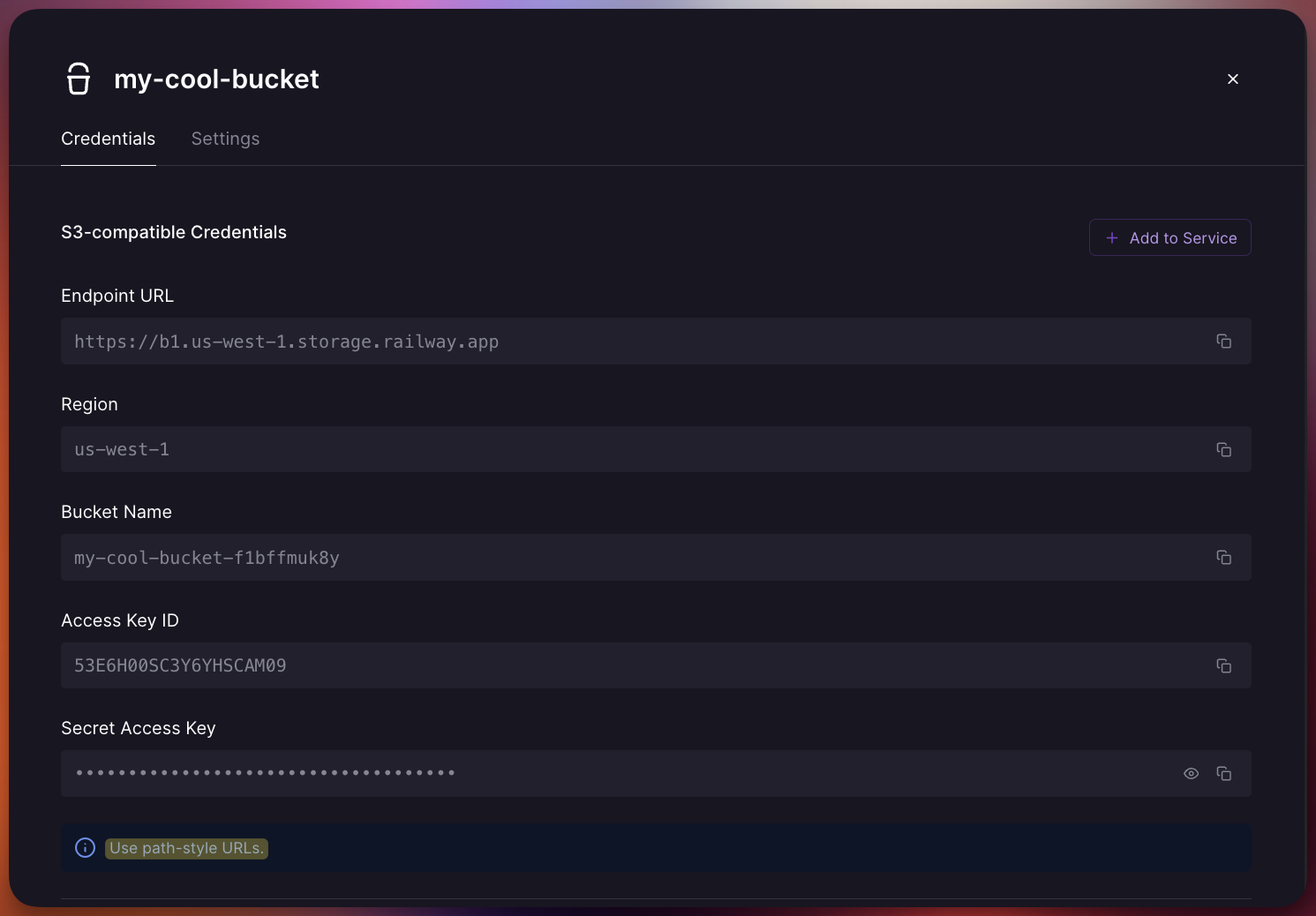
Once your bucket is deployed, you'll find S3-compatible authentication credentials in the Credentials tab of the bucket. These include the necessary details for you to connect to your bucket using your S3 client library.
URL Style
Railway Buckets use virtual-hosted–style URLs, where the bucket name appears as the subdomain of the S3 endpoint. This is the standard S3 URL format, and most libraries support it out of the box. In most cases you only need to provide the base endpoint (https://storage.railway.app) and the client builds the full virtual-hosted URL automatically.
Buckets that were created before this change might require you to use path-style URLs instead. The Credentials tab of your bucket will tell you which style you should use.
Variable References
Storage Buckets can provide the S3 authentication credentials to your other services by using Variable References. You can do this in two ways:
Manually configuring your service's variables
You can use regular Shared Variables by adding one to your service and pointing it at the values provided by your bucket.
Automatically provisioning the variables to your service
You can insert all the required authentication variables into your service's variables depending on your S3 client. We have presets for the AWS SDK, Bun's built-in S3 driver, FastAPI, Laravel, and more.
Doing this sets the names for the credentials based on what each library expects as the default environment variable names. Supported libraries (notably the official AWS SDKs) can automatically pick them up so you don't have to provide each variable to the S3 client.
Railway-Provided Variables
Railway provides the following variables which can be used as Variable References.
| Name | Description |
|---|---|
BUCKET | The globally unique bucket name for the S3 API. Example: my-bucket-jdhhd8oe18xi |
SECRET_ACCESS_KEY | The secret key for the S3 API. |
ACCESS_KEY_ID | The key id for the S3 API. |
REGION | The region for the S3 API. Example: auto |
ENDPOINT | The S3 API endpoint. Example: https://storage.railway.app |
RAILWAY_PROJECT_NAME | The project name the bucket belongs to. |
RAILWAY_PROJECT_ID | The project id the bucket belongs to. |
RAILWAY_ENVIRONMENT_NAME | The environment name of the bucket instance. |
RAILWAY_ENVIRONMENT_ID | The environment id of the bucket instance. |
RAILWAY_BUCKET_NAME | The bucket name.This is not the bucket name to use for the S3 API. Use BUCKET instead. |
RAILWAY_BUCKET_ID | The bucket id. |
Serving and Uploading Files
Buckets are private, but you can still work with their files in a few ways. You can serve files straight from the bucket, proxy them through your backend, or upload files directly from clients or services.
Bucket egress is free. Service egress is not. If your service sends data to users or uploads files to a bucket, that traffic counts as service egress. The sections below explain these patterns and how to avoid unnecessary egress.
Presigned URLs
Presigned URLs are temporary URLs that grant access to individual objects in your bucket for a specific amount of time. They can be created with any S3 client library and can live for up to 90 days.
Files served through presigned URLs come directly from the bucket and incur no egress costs.
Serve Files with Presigned URLs
You can deliver files directly from your bucket by redirecting users to a presigned URL. This avoids egress costs from your service, as the service isn't serving the file itself.
import { s3 } from 'bun'
async function handleFileRequest(fileKey: string) {
const isAuthorized = isUserAuthorized(currentUser, fileKey)
if (!isAuthorized) throw unauthorized()
const presignedUrl = s3.presign(fileKey, {
expiresIn: 3600 // 1 hour
})
return Response.redirect(presignedUrl, 302)
}Use-cases:
- Delivering user-uploaded assets like profile pictures
- Handing out temporary links for downloads
- Serving large files without passing them through your service
- Enforcing authorization before serving a file
- Redirecting static URLs to presigned URLs
Serve Files with a Backend Proxy
You can fetch a file in your backend and return it to the client. This gives you full control over headers, formatting, and any transformations. It does incur service egress, but it also lets you use CDN caching on your backend routes. Many frameworks support this pattern natively, especially for image optimization.
Use-cases:
- Transforming or optimizing images (resizing, cropping, compressing)
- Sanitizing files or validating metadata before returning them
- Taking advantage of CDN caching for frequently accessed files
- Web frameworks that already use a proxy for image optimization
Upload Files with Presigned URLs
You can generate a presigned URL that lets the client upload a file directly to the bucket, without handling the upload in your service. Doing so prevents service egress and reduces memory consumption.
// server-side
import { S3Client } from '@aws-sdk/client-s3'
import { createPresignedPost } from '@aws-sdk/s3-presigned-post'
async function prepareImageUpload(fileName: string) {
const isAuthorized = isUserAuthorized(currentUser, fileKey)
if (!isAuthorized) throw unauthorized()
// The key under which the uploaded file will be stored.
// Make sure that it's unique and users cannot override
// each other's files.
const Key = `user-uploads/${currentUser.id}/${fileName}`
const { url, fields } = await createPresignedPost(new S3Client(), {
Bucket: process.env.S3_BUCKET,
Key,
Expires: 3600,
Conditions: [
{ bucket: process.env.S3_BUCKET },
['eq', '$key', Key],
// restrict which content types can be uploaded
['starts-with', '$Content-Type', 'image/'],
// restrict content length, to prevent users
// from uploading suspiciously large files.
// max 2 MB in this example.
['content-length-range', 5_000, 2_000_000],
],
})
return Response.json({ url, fields })
}
// client-side
async function uploadFile(file) {
const res = await fetch('/prepare-image-upload', {
method: 'POST',
body: JSON.stringify({ fileName: file.name })
})
const { url, fields } = await res.json()
const form = new FormData()
Object.entries(fields).forEach(([key, value]) => {
form.append(key, value)
})
form.append('Content-Type', file.type)
form.append('file', file)
await fetch(url, {
method: 'POST',
body: form
})
}Similar to handling uploads through your service, be mindful that users may try to upload HTML, JavaScript, or other executable files. Treat all uploads as untrusted. Consider validating or scanning the file after the upload completes, and remove anything that shouldn't be served.
Use-cases:
- Uploading files from the browser
- Mobile apps uploading content directly
- Large file uploads where you want to avoid streaming through your service
Upload Files from a Service
A service can upload directly to the bucket using the S3 API. This will incur service egress.
import { s3 } from 'bun'
async function generateReport() {
const report = await createPdfReport()
await s3.putObject("reports/monthly.pdf", report, {
contentType: "application/pdf"
})
}Use-cases:
- Background jobs generating files such as PDFs, exports, or thumbnails
- Writing logs or analytics dumps to storage
- Importing data from a third-party API and persisting it in the bucket
Buckets in Environments
Each environment gets its own separate bucket instance with isolated credentials. When you duplicate an environment or use PR environments, you won't need to worry about accidentally deleting production objects, exposing sensitive data in pull requests, or polluting your production environment with test data.
How Buckets are Billed
Buckets are billed at $0.015 per GB-month (30 days), based on the total amount of data stored across all bucket instances in your workspace, including Environments. All S3 API operations are unlimited and free. Egress is also unlimited and free, whether that's using presigned URLs or via the S3 API. Note that service egress is not free, as explained in Bucket Egress vs. Service Egress
Usage (GB-month) is calculated by averaging the day-to-day usages and rounding the final accumulation to the next whole number if it totaled a fractional amount (5.1 GB-month gets billed as 6 GB-month).
Buckets are currently only available in the Standard storage tier – there's no minimum storage retention and no data retrieval fees.
Bucket Egress vs. Service Egress
Even though buckets don't charge for ingress or egress, buckets still live on the public network. When you upload files from your Railway services to your buckets, those services will incur egress usages, since you're uploading over the public network. Buckets are currently not available on the private network.
Billing Examples
- If you stored 10 GBs for 30 days, you'd get charged for for 10 GB-month.
- If you stored 10 GBs for 15 days and 0 GB for the next 15, your usage averages to 5 GB-month.
Free Plan
You can use up to 10 GB-month each month on the free plan. Bucket usage counts against your $1 monthly credit. Once the credit is fully used, bucket access is suspended and files become unavailable, but your files will not be deleted. You can access your files again at the next billing cycle when credits refresh, or immediately if you upgrade to a paid plan.
Trial Plan
You can use up to 50 GB-month during the trial. Bucket usage counts against your trial credits. When the trial ends, bucket access is suspended and files become unavailable. You can access your files again when you switch to the Free Plan or upgrade to a paid plan.
Limited Trial
Buckets are not available in the Limited Trial.
Hobby
The Hobby Plan has a combined maximum storage capacity of 1TB. Any uploads that would exceed this limit will fail.
Pro
The Pro Plan has unlimited storage capacity.
Usage Limit
If you exceed your Hard Usage Limit, bucket access is suspended and files cannot be read or uploaded anymore. Existing stored data is still billed. You can access your files again once you raise or remove the Hard Limit, or when the next billing period starts.
S3 Compatibility
Buckets are fully S3-compatible. You can use them with any S3 client library for any language, tool, or framework, and you can expect the same functionality on Railway Buckets as if you were using a normal S3 bucket.
Supported features include:
- Put, Get, Head, Delete objects
- List objects, List objects V2
- Copy objects
- Presigned URLs
- Object tagging
- Multipart uploads
Not yet supported:
- Server-side encryption
- Object versioning
- Object locks
- Bucket lifecycle configuration
Deleting a Bucket
You can delete your bucket by clicking on it in your canvas, going to Settings, and selecting Delete Bucket.
Buckets without any data in them will be deleted immediately, and non-empty buckets will be scheduled for permanent deletion two days after you select the deletion to protect against accidental deletions.
You will continue to be billed for your accumulated storage size until your bucket has been permanently deleted at the two-day mark.
FAQ
How can I view my bucket files in a project?
Railway doesn't currently have a built-in file explorer. To view, upload, or download files, you'll need to use an S3 file explorer app.
Interested in a native file explorer? Show your support by upvoting this feature request.
Are there automatic backups for buckets?
Railway doesn't currently offer automatic backups or snapshots for buckets.
Want this feature? Leave your feedback in this feature request.
What hardware do buckets run on?
Railway Buckets run on Tigris's metal servers, which provides real object storage with high performance and durability.
This is true object storage, not block storage like Volumes, so concepts like IOPS don't apply here.
Can I use private networking to connect to a bucket?
Buckets are currently only accessible via public networking.
How are S3 API operations billed?
All S3 API operations (PUT, GET, DELETE, LIST, HEAD, etc.) are free and unlimited on Railway Buckets.
In traditional S3 pricing, these are categorized as Class A operations (PUT, POST, COPY, LIST) and Class B operations (GET, HEAD), but on Railway, you don't need to worry about operation costs at all.
How is egress billed?
Egress from buckets to the internet or to your services is free and unlimited.
Note that egress from your services to buckets (uploads) is billed at the standard public egress rate. Learn more about Bucket Egress vs. Service Egress.
Help us improve Storage Buckets
Upvote these feature requests on our feedback page if these features sound useful to you:
If you have an idea for other features, let us know on this feedback page.
Edit this file on GitHub